
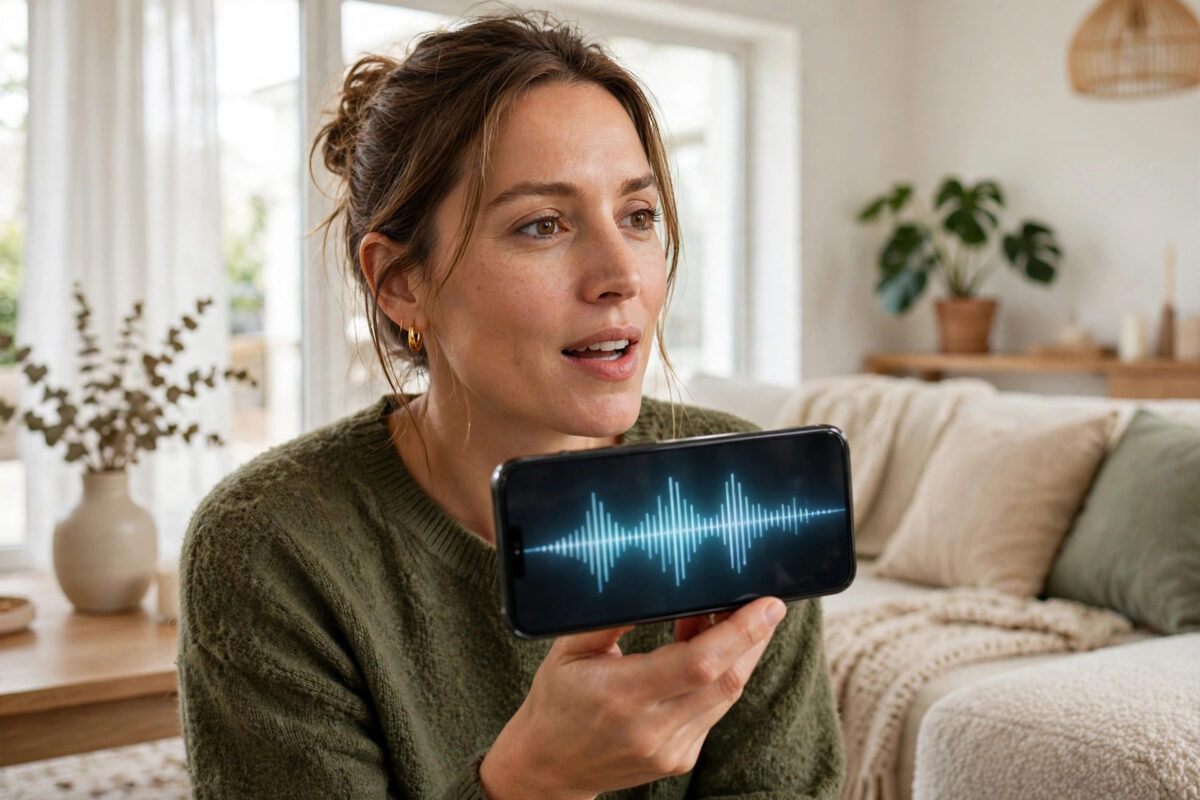
Typing long questions on a small phone screen gets tiring fast, especially when you are cooking, walking, or trying to finish something with your hands full. Voice mode solves that problem by letting you speak to ChatGPT naturally and hear a spoken reply, much like a real conversation.
The feature is built into the official ChatGPT app for iPhone and Android. You can interrupt it, change direction mid-sentence, and ask follow-up questions without tapping anything.
This guide walks you through setting it up, starting your first voice chat, changing voices and languages, and fixing the most common problems people run into on their phones.
Quick Answer
Install the official ChatGPT app, sign in, and tap the voice or waveform icon next to the message box. Allow microphone access when asked, then start speaking. Tap the microphone again to mute, and tap the X or end button to finish the conversation.
What You Need Before You Start
You do not need much to get started, but a few basics make the first try much smoother. Check these before you open the app.
Phone and app requirements
Voice works in the official ChatGPT mobile app, not in most phone browsers. You need a reasonably recent version of iOS or Android and a stable internet connection, because your speech is processed online rather than on the phone itself.
- Open the App Store or Google Play and search for ChatGPT by OpenAI.
- Check the developer name carefully to avoid copycat apps.
- Install the app and update it if an update is offered.
- Connect to Wi-Fi or mobile data and test that other apps load normally.
Account and plan differences
Both free and paid accounts can use voice, but the experience is not identical. Free accounts usually get access to a standard voice experience with daily limits, while paid plans typically include the more advanced voice mode with faster responses, better memory of context, and higher usage limits.
Pricing and limits change often, so treat voice on a free tier as a generous trial. If you plan to use it for long study sessions, language practice, or work calls notes, a paid plan will feel less restrictive. You can compare the current options on the official OpenAI voice mode help page before you decide.
How to Start a Voice Conversation Step by Step
The exact icon has changed positions a few times, but the flow is now consistent on both iPhone and Android. Follow these steps the first time.
Starting voice on iPhone and Android
- Open the ChatGPT app and sign in to your account.
- Start a new chat from the home screen.
- Look to the right of the message box and tap the waveform or voice icon.
- When prompted, allow microphone access. Choose While Using the App if your phone offers that option.
- Wait for the animated circle or orb to appear, which means ChatGPT is listening.
- Speak clearly in a normal tone. You do not need to press anything while talking.
- Listen to the spoken reply. You can interrupt at any time by speaking over it.
- Tap the mute icon to pause listening, or tap the end button to close voice mode.
After you end the session, a transcript usually appears in the chat. That is useful if you want to copy a recipe, an address, or a summary it gave you without replaying the audio.
Choosing a voice and speaking style
ChatGPT offers several distinct voices with different tones. Some sound more formal, others more relaxed and conversational. You can change the voice in Settings under Speech or Voice, and the change applies to new conversations.
Try two or three voices for a full minute each rather than judging from a single sentence. Pick the one you would happily listen to while walking or driving.
Changing language for voice chats
Voice mode supports many languages and can often detect what you are speaking automatically. If it replies in the wrong language, say clearly, in that language, that you want to continue in it, or set your preferred language in the app settings.
For language practice, this is one of the best uses. Ask it to speak slowly, correct your pronunciation gently, and only switch to English when you ask for a translation. Be specific at the start of the session and it will usually follow the rule well.
Making Voice Conversations Actually Useful
Many people try voice once, ask a trivia question, and never open it again. The real value appears when you use it for tasks where speaking is faster than typing.
Everyday uses that work well
Brainstorming is ideal for voice because you can think out loud and let the ideas bounce back. It also works well for explaining a difficult topic in simple steps, preparing for an interview, summarising a long article you paste in first, and talking through a plan while you make notes elsewhere.
On our site we test these workflows regularly, and you can find more practical examples in our latest AI guides and practical technology tutorials covering phones, apps, and productivity tools.
Tips for clearer answers
- Give context first, then ask the question. For example, explain who the message is for before asking for a draft.
- Ask for short answers when you are listening, such as “Answer in three short points.”
- Ask it to read lists slowly and pause between items.
- If an answer drifts, interrupt and restate what you actually need.
- End important sessions by asking for a written summary you can save from the transcript.
Speaking in shorter sentences also helps. Break a job into steps and the quality improves immediately.
Troubleshooting Common Voice Problems
Most voice issues are simple permission or connection problems, not faults with your account. Work through these checks in order.
No sound or ChatGPT cannot hear you
- Check that your phone is not on silent or connected to a Bluetooth device in another room.
- Go to your phone settings, open app permissions, and confirm microphone access is on for ChatGPT.
- Remove a thick case or clean the microphone area if your voice sounds muffled in other apps too.
- Close and reopen the app, then start a completely new chat.
- Test your connection by loading a web page. Voice needs a steadier connection than text chat.
Voice mode keeps stopping or cutting out
Background noise, a weak signal, and long pauses can all end a listening turn early. Move closer to your router, use headphones with a built-in microphone, and try to speak in a quieter place. Headphones also stop the phone speaker from confusing the microphone, which is a common cause of interruptions.
If the problem happens on every network, update the app and restart your phone. Persistent faults after those steps are usually temporary service issues, and checking OpenAI’s status updates is more useful than reinstalling repeatedly.
Common Mistakes to Avoid
The first mistake is downloading the wrong app. Dozens of imitation apps use similar names and logos, charge weekly subscriptions, and offer poor voice quality. Only use the official app published by OpenAI.
The second mistake is sharing sensitive information out loud in public. Voice conversations can be overheard, and, like text chats, they may be stored in your account history. Avoid reading out passwords, financial details, or private documents where others can hear you or on an account you share.
People also forget that voice answers can sound confident even when they are wrong. A spoken reply feels authoritative, but you should still verify names, dates, prices, medical information, and legal details from a trusted source before acting on them.
Finally, many users leave the microphone live while doing something else. End the session properly when you finish. It saves battery, protects your privacy, and prevents accidental recordings of background conversation.
Conclusion
Talking to ChatGPT with voice on your phone takes less than a minute to set up once the official app is installed. Tap the voice icon, allow the microphone, and speak naturally. Choose a voice you like, keep your questions focused, and use the transcript afterwards for anything you need to keep. With a quiet space and a decent connection, voice quickly becomes faster and more natural than typing for brainstorming, learning, and everyday questions.
Frequently Asked Questions
Is ChatGPT voice mode free on phones?
Yes, free accounts can use voice mode, usually with daily limits and the standard voice experience. Paid plans generally offer the more advanced mode, higher limits, and faster responses. Exact allowances change over time, so check your app for your current limit.
Can I use voice mode without the app?
Voice is designed for the mobile app and, on desktop, the official website in supported browsers. On a phone, the app gives the most reliable microphone access and playback. Browser support on mobile is limited and often lacks the full voice experience.
Does ChatGPT save my voice conversations?
Voice chats appear as transcripts in your chat history, and audio handling follows your account and privacy settings. Review your data controls in the app, delete conversations you do not want to keep, and avoid sharing sensitive details in any AI chat.
Can I change the voice while talking?
Usually you need to end the current session, change the voice in Settings, and start again. Your preference is then saved for future conversations. Try a few voices over longer answers to find one that stays comfortable to listen to.
Why does it reply in the wrong language?
Automatic detection can be confused by short phrases, names, or background speech in another language. State your language clearly at the start, set it in settings if available, and correct it once in that language. It normally stays consistent after that.



Leave a Reply