
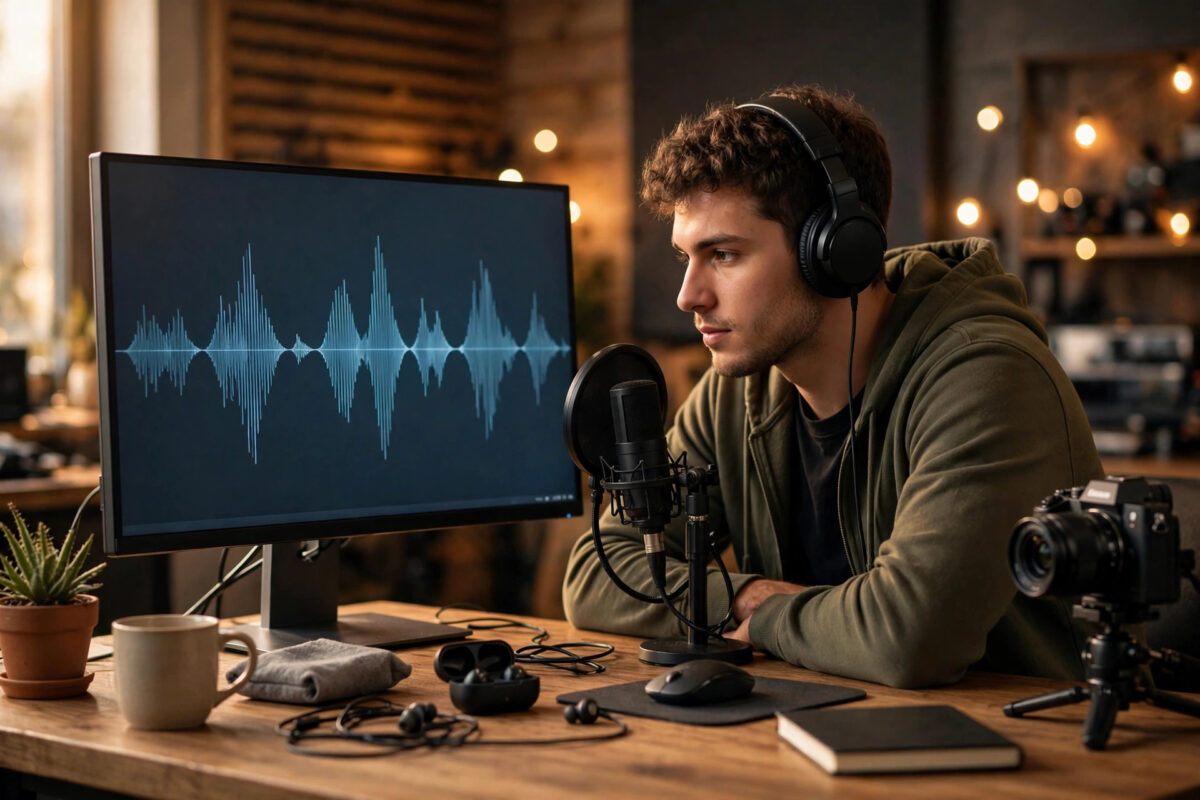
Recording your own narration sounds simple until you actually try it. You hear every breath, every mouth click, and every passing motorbike outside your window. You re-record the same sentence twelve times, and it still does not sound like the polished voiceovers you hear on documentaries, explainer videos, and YouTube tutorials. That frustration is exactly why AI voice generators have become so popular with creators, teachers, and small businesses.
Modern AI voice tools can turn a written script into natural-sounding speech in minutes. The best ones offer different accents, tones, and speaking styles, and they let you adjust pace, pauses, and emphasis without booking a studio or hiring a voice actor. Used well, they do not sound robotic at all. Used badly, they sound flat and obviously artificial — and the difference is almost always in how you prepare the script and set up the voice.
This guide walks you through the whole process, from choosing a tool and writing a script that actually sounds spoken, to generating the audio, cleaning it up, and syncing it with your video. Whether you are making training videos for work, lessons for students, or content for a channel, these steps will help you get a clean, professional result the first time.
Quick Answer
Write a short, conversational script, paste it into an AI voice generator, choose a voice that matches your audience and topic, and adjust pace and pauses before you export. Then import the audio file into your video editor, line it up with your visuals, add gentle background music, and listen through headphones before publishing.
What AI Voice Generators Actually Do
An AI voice generator uses text-to-speech technology trained on real human voices. You type or paste text, and the system predicts how a person would say it — including rhythm, intonation, and natural pauses. Newer tools go further: some let you clone a voice with permission, change the emotion of a line, or generate narration in several languages from the same script.
That matters for video because narration is not just information. Tone carries trust. A calm, steady voice suits a finance explainer, while an energetic voice works better for a product demo. Before you generate anything, decide what feeling you want the viewer to have in the first ten seconds, because that decision guides your voice choice more than any technical setting.
If you are new to this kind of workflow, it helps to explore broader guides on practical AI tools and technology tutorials for beginners so you understand where voice generation fits alongside editing, captioning, and publishing tools.
Step 1: Choose the Right Voice Generator for Your Project
There is no single best tool for everyone. Some platforms focus on ultra-realistic voices for commercial work, others are built into video editors for convenience, and some specialise in multiple languages. Focus on fit, not hype.
- List your real requirements. Note the languages you need, the length of your videos, whether you need commercial usage rights, and whether you will work alone or with a team.
- Test the same paragraph everywhere. Paste an identical 100-word sample into two or three tools. Listen for natural breathing, clear pronunciation of names, and how the voice handles questions and lists.
- Check the editing controls. Look for speed control, pause insertion, pronunciation dictionaries, and the ability to regenerate a single sentence instead of the whole script.
- Review the licence carefully. Free tiers often limit downloads, add restrictions on commercial use, or offer fewer voices. Paid tiers usually unlock higher-quality audio, more characters per month, and proper usage rights.
- Confirm export formats. Make sure you can download MP3 or WAV files that work in your video editor without extra conversion steps.
Well-known platforms document their features openly, and the official ElevenLabs voice generation platform is a useful example of how voice libraries, cloning options, and language support are usually presented. Compare that layout with a couple of alternatives before committing to a subscription.
Step 2: Write a Script That Sounds Spoken, Not Written
This is the step most people skip, and it is the main reason AI narration sounds artificial. Text written for reading uses long sentences, formal transitions, and dense information. Speech needs the opposite.
Script-Writing Rules That Make a Real Difference
- Keep sentences short. Aim for one idea per sentence. If you run out of breath reading it aloud, the AI voice will struggle with it too.
- Use contractions. Write “you’ll” instead of “you will” and “don’t” instead of “do not” wherever it sounds natural. Real people contract words.
- Spell out tricky items. Write numbers, dates, and abbreviations the way they should be spoken. Write “twenty twenty-six” if that is how you want the year pronounced.
- Add punctuation for pacing. Commas create short pauses and full stops create longer ones. Ellipses can signal a thoughtful pause, but use them sparingly.
- Read every draft aloud. Your ears will catch awkward phrasing that your eyes miss. Rewrite anything you stumble over.
A good target is around 130 to 150 spoken words per minute. A five-minute video therefore needs roughly 700 words of script — far less than most beginners expect. Writing tighter scripts also makes your videos easier to follow and easier to caption later.
Step 3: Generate, Direct, and Refine the Voice
Think of yourself as a director, not just a user clicking a generate button. The first output is a draft, not a finished performance.
- Select the voice by audience. Match age, accent, and energy to the people watching. A British audience may connect better with a British accent on a local topic, for example.
- Generate in small sections. Work scene by scene or paragraph by paragraph. This makes fixes cheap and keeps the tone consistent within each section.
- Adjust stability and expressiveness if available. Higher stability sounds calmer and more consistent; more expressiveness adds emotion but can become unpredictable.
- Fix pronunciation deliberately. Use the pronunciation tool or respell a word phonetically in your working copy, then note the change so you repeat it consistently.
- Regenerate only the weak lines. If one sentence sounds flat, change its punctuation or split it in two, then regenerate just that part.
- Export in the highest quality offered. WAV files are larger but cleaner for editing. MP3 is fine for most online video if storage is a concern.
Pay special attention to the opening line. Viewers decide quickly whether to keep watching, and a confident, well-paced first sentence sets the standard for everything that follows.
Step 4: Sync the Narration With Your Video
Great audio placed badly still feels amateur. Syncing is where narration becomes storytelling.
- Import the audio into your editor first. Place narration on its own track before adding music or effects, so you can edit it cleanly.
- Align visuals to meaning. When the voice mentions a step, show that step on screen at the same moment — not five seconds earlier or later.
- Trim silence carefully. Remove long gaps, but keep natural pauses between ideas. Over-trimming makes narration feel rushed and exhausting.
- Add music underneath, quietly. Background music should sit well below the voice. If you have to strain to hear words, the music is too loud.
- Add captions. Captions help viewers watching without sound, improve accessibility, and reinforce key points. Most editors can generate them from your script or audio.
Finally, watch the full video once on speakers and once on headphones. Headphones reveal hiss, clicks, and uneven volume that laptop speakers hide.
Common Mistakes and Practical Tips
Mistake 1: Feeding the AI a blog post. Written articles make terrible narration scripts. Always rewrite for the ear first.
Mistake 2: Using one voice for everything. A serious tutorial and a playful advert need different deliveries. Build a small set of trusted voices for different content types.
Mistake 3: Ignoring usage rights. Check whether your plan covers commercial and monetised use, especially for client work. Rules differ between free and paid tiers.
Mistake 4: Cloning voices without permission. Only clone your own voice or a voice you have clear, documented permission to use. This is both an ethical and a legal issue.
Tip: Keep a pronunciation list for your niche — product names, place names, and technical terms you use often. Reusing it saves time on every video. Also save your favourite voice settings as a preset so a series of videos sounds consistent week after week.
Conclusion
AI voice generators work best when you treat them as a production tool, not a shortcut. Choose a tool that fits your language, budget, and usage needs, write short conversational scripts designed to be heard, direct the voice section by section, and sync the result carefully with your visuals. Do those four things and your narration will sound confident and natural — even if you never record a single line yourself. Start with one short video, learn how your chosen tool responds to punctuation and pacing, and build from there.
Frequently Asked Questions
Do AI voice generators sound realistic enough for YouTube?
Yes, the better tools are realistic enough for tutorials, explainers, and educational content, especially when the script is conversational. Viewers notice poor pacing and bad audio mixing far more than they notice the voice itself.
Can I use AI narration in videos I earn money from?
Usually yes on paid plans, but the licence depends on the provider and tier. Always read the commercial-use terms for your specific plan before publishing monetised or client work.
How long should a narration script be for a 10-minute video?
At a natural speaking pace of roughly 130 to 150 words per minute, a 10-minute video needs about 1,300 to 1,500 words. Slower, instructional content may need fewer words with more pauses.
Is it legal to clone someone else’s voice?
Only with that person’s clear permission. Cloning a celebrity, colleague, or client voice without consent can violate privacy and publicity rights and can damage trust. Clone your own voice or use licensed stock voices instead.
Which is better for narration, MP3 or WAV?
WAV offers higher quality and is better if you plan to edit or process the audio. MP3 files are smaller and perfectly acceptable for most online videos where the narration is already final.



Leave a Reply