
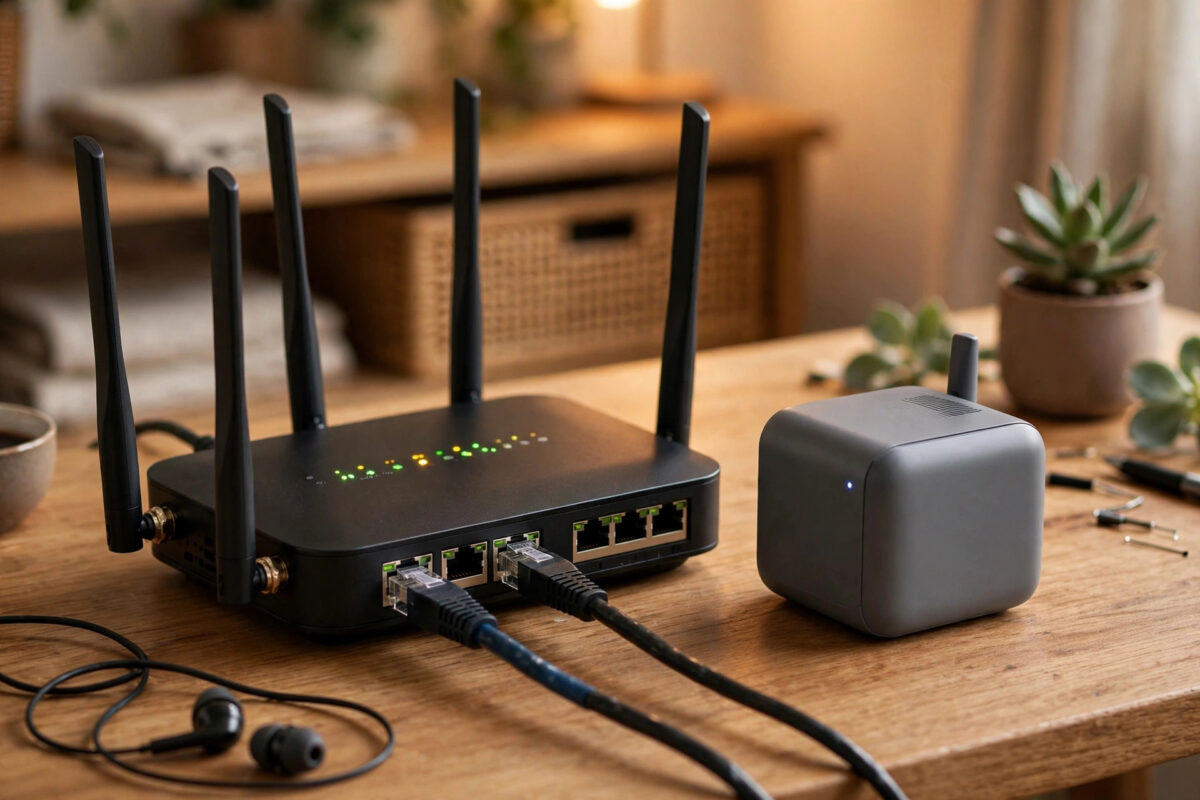
If your home internet drops during a video call, a work deadline, or a family movie night, you quickly realise how much daily life depends on a single connection. A second internet line used as automatic backup solves that problem.
Instead of scrambling for a mobile hotspot when your main broadband fails, your router switches to the backup line in seconds. Your calls stay connected, your smart home keeps working, and you may not even notice the outage happened.
This guide walks you through the realistic options for UK and US homes, from a simple 4G or 5G backup to a full second fixed line, what hardware you need, how failover works, and how to set it up without wasting money on speed you will never use.
Quick Answer
To connect a second internet line as backup, get a dual-WAN router, plug your main broadband into WAN1 and your second line — fibre, cable, DSL, or 4G/5G — into WAN2, then enable failover in the router settings. The router will automatically switch to the backup when the main line fails and switch back when it recovers.
Why a Second Line Is Worth Considering
Most outages are short, but even a 20-minute dropout can ruin a presentation or online exam. Providers offer no compensation for residential downtime, and fixes can take one or two working days.
A backup connection is not about doubling your everyday speed. It is about continuity.
Who Benefits Most From Backup Internet
Remote workers on Teams, Zoom, or VPN benefit most, as do households with security cameras, smart locks, or medical alert devices that need a constant connection. For most households, the value is peace of mind.
How Often Do Main Lines Actually Fail?
A typical fibre or cable line might go down two to five times a year, plus smaller overnight glitches during maintenance. If your two lines use different technologies — fibre for the main line and 5G for backup — the chance of both failing at once is very small. That diversity matters more than raw backup speed.
Choosing Your Backup Line Type
You have four practical choices, and the best one depends on budget, availability at your address, and how fast you need the backup to be.
Option 1: A Second Fixed Line
This could be a second fibre, cable, or DSL service from a different provider using different street infrastructure. It is the most reliable option because it does not depend on mobile signal.
The downside is cost. You pay a full second monthly bill, often £25 to £45 per month in the UK or $40 to $70 in the US, plus possible installation. Only choose this if you work from home full time and downtime genuinely costs you money.
Option 2: 4G or 5G Mobile Broadband
For most homes, this is the sweet spot. A 4G router with an external antenna or a 5G home broadband service can deliver 30 to 150 Mbps on 4G and 150 to 500 Mbps on strong 5G, which is plenty for calls, browsing, and HD streaming during an outage.
You can buy a data-only SIM on a rolling monthly contract, so you are not locked in. Keep the data allowance modest — 50GB to 100GB is enough for occasional backup use if you restrict large downloads during failover.
Option 3: Satellite as Backup
Satellite works almost anywhere and is independent of local cables and mobile masts, making it a niche rural option. Latency is higher than fixed lines, but it is usable for work in an emergency.
The Hardware You Need: Dual-WAN Routers
Your standard ISP router almost never supports a second WAN connection properly. You need a dual-WAN router or a router that can turn one LAN port or USB port into a second WAN.
Popular choices include models from TP-Link, ASUS, Netgear, and UniFi. Expect to pay £80 to £200 for a capable gigabit dual-WAN router.
Failover vs Load Balancing
These two terms are often confused, and picking the wrong mode causes headaches.
Failover means the backup sits idle until the main line fails. Load balancing means both lines are used at once to share traffic. For a backup setup, choose failover. Load balancing can break banking websites, VPNs, and games because your public IP address keeps changing between the two lines.
Our detailed dual-WAN router setup guide for home failover explains the menu differences between major brands if you want brand-specific screenshots.
Key Settings to Look For
Check that the router offers ping-based health checks, where it pings a reliable address like 8.8.8.8 every 5 to 10 seconds to detect failure, adjustable failover sensitivity so it does not switch on a single dropped packet, and the ability to restrict traffic on the backup line.
Also confirm the router supports gigabit WAN ports if your main line is over 100 Mbps. An older 100 Mbps WAN port will cap a 500 Mbps fibre line even when the backup is not in use.
Step-by-Step Setup Guide
Menus vary by brand, but the steps are the same on almost every dual-WAN router.
- Connect your main broadband modem or optical network terminal to the WAN1 port on the dual-WAN router using a Cat6 Ethernet cable.
- Connect your second line — the second modem, 4G/5G router in bridge mode, or DSL modem — to the WAN2 or LAN/WAN port you have assigned as the second WAN.
- Log in to the router admin page, usually 192.168.0.1 or 192.168.1.1, and open the WAN or Internet settings section.
- Set WAN1 as Primary and WAN2 as Backup, then select Failover mode rather than Load Balance.
- Configure connection detection to ping an external host every 10 seconds and trigger failover after 3 failed attempts.
- If the backup is mobile data, enable data-saving rules: block software updates, cloud backups, and 4K streaming devices while on WAN2.
- Save the settings, reboot the router, and test by unplugging the WAN1 cable — your devices should reconnect via WAN2 within 15 to 30 seconds.
- Reconnect WAN1 and confirm the router switches back automatically and that your public IP returns to the main line address.
Test during a quiet moment, not a real outage, so you know what to expect.
Positioning a 4G or 5G Backup Router
If your backup is mobile, place its router near a window on the side of the house facing the nearest mast, ideally upstairs. A difference of a few metres can change 5G speeds from 40 Mbps to 200 Mbps. Use a signal-checking app and aim for an RSRP better than -95 dBm for stable performance.
Avoid putting the mobile router right next to your main router in a cupboard under the stairs, which is the worst spot for mobile signal in most houses.
Managing Costs and Data on the Backup Line
Set a monthly data cap in the mobile router if it supports one, with alerts at 50 percent and 80 percent of your allowance, to avoid a surprise overage bill.
During failover, pause OneDrive, Google Drive, iCloud, and game downloads. A single PlayStation update can be 20GB to 50GB and will wipe out a small backup allowance in one evening. The failover concept explained on Wikipedia covers why automatic switching needs these policy controls in larger networks too — the same principle applies at home.
If outages are rare, a pay-as-you-go SIM can work, but test it monthly because unused SIMs can be deactivated after 90 to 180 days.
Common Mistakes to Avoid
The most common mistake is buying two lines that share the same physical infrastructure. Two fibre services that both run through the same street cabinet and the same duct will often fail together when that duct is damaged. Diversity of technology matters more than having two fast lines.
Another mistake is never testing failover, then discovering during a real outage that the backup SIM expired or a firmware update reset the settings.
Do not use load balancing by default and do not forget to restrict heavy traffic on mobile backup. If outages come with power flickers, add a small uninterruptible power supply for both routers.
Conclusion
A second internet line as backup is a practical upgrade for any home that depends on reliable connectivity for work, security, or study. For most households, a dual-WAN router plus a modest 4G or 5G backup offers the best balance of cost and reliability, switching over in seconds when the main line fails.
Choose diverse technologies, set the router to failover rather than load balancing, restrict heavy traffic on the backup, and test the switch every few months. Done properly, a main-line outage becomes a minor blip instead of a ruined day.
Frequently Asked Questions
Will my video call drop when the router switches to backup?
Usually it will freeze for 10 to 30 seconds and then reconnect, because your public IP address changes. Some calls recover automatically, while VPN connections often need to reconnect once. It is far better than losing the connection entirely for hours.
How fast does my backup line need to be?
For working from home, 25 to 50 Mbps is enough for video calls, email, and cloud documents. If several people will stream in HD at the same time during an outage, aim for 75 to 100 Mbps on the backup.
Can I use my phone hotspot as the second line instead?
You can for occasional manual backup, but it is not automatic and your phone must stay at home and plugged in. A dedicated 4G or 5G router with its own SIM is much more reliable for automatic failover.
Do I need a static IP address on the backup line?
No, not for normal home use. A dynamic IP is fine for browsing, calls, and streaming. You only need to think about static IPs if you host a server at home that others must reach during an outage.
Will a backup line increase my normal internet speed?
No, not in failover mode, because the backup sits idle until needed. Only load balancing uses both lines at once, and even then a single download rarely gets the combined speed of both lines.



Leave a Reply