
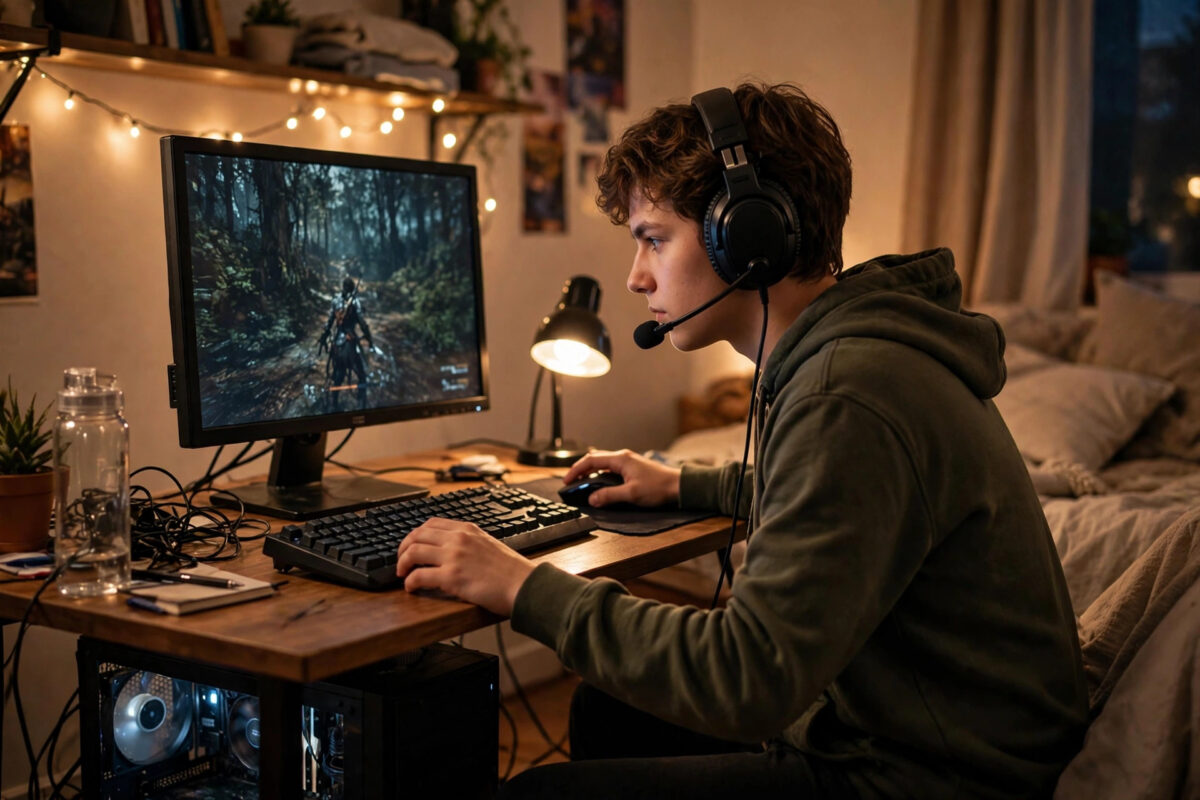
Gaming on a low-end PC can feel like an uphill battle. You load into a match and the frame rate stutters every time the action heats up. Aiming feels floaty because inputs arrive late. Textures pop in seconds after you arrive, the game freezes during every explosion, and by the time your screen catches up, you are watching a respawn timer. It is tempting to conclude that only a new graphics card will help — but that conclusion is often wrong.
Lag is not one problem. It is three problems wearing the same name: low frame rates from hardware limits, stutter from background tasks and slow storage, and input or network delay from settings and connections. On a low-end PC, small optimisations in each area add up dramatically. Correct in-game settings alone can double your frames per second. Freeing RAM, taming Windows background activity, and fixing power and driver settings can remove the stutter that makes a playable frame rate feel unplayable.
This guide focuses on free, safe changes that work on modest hardware — integrated graphics, older cards, 8 GB of RAM and ageing processors. No risky registry hacks or booster scams.
Understand Your Lag: FPS, Stutter, Input Delay and Ping
Before changing settings at random, identify which kind of lag you have, because the fixes differ. Low FPS means the game consistently renders few frames per second, making motion choppy everywhere. Stutter means the average frame rate looks acceptable but sharp freezes interrupt play, often when new areas load. Input lag means frames render smoothly but mouse and keyboard actions feel delayed. High ping means the game world reacts late — other players warp or shots register slowly — which is a network issue, not graphics.
Measure instead of guessing. Steam offers an FPS counter under Settings, then In Game, while the Xbox Game Bar widget, opened with Windows key plus G, shows frame rate too. Play five minutes with an overlay and note your FPS and ping. Our PC gaming performance guides and hardware tips explain these concepts for budget systems.
Optimise In-Game Settings for the Biggest FPS Gains
Nothing in Windows matters as much as settings inside the game itself. On low-end hardware, choosing wisely is the difference between 25 frames per second and a smooth 60.
Resolution and Render Scale Come First
Resolution is the heaviest setting of all. If you play at 1920 by 1080 and struggle, dropping to 1600 by 900 or 1280 by 720 can raise frame rates by 40 percent or more. Many games offer a render scale slider — setting it to 80 or 85 percent renders internally at a lower resolution while keeping menus sharp. Upscaling options like AMD FSR, Intel XeSS or NVIDIA Image Scaling can recover much of the lost clarity. Use these before sacrificing everything else.
The Settings That Cost the Most Frames
Set shadows to Low or Off first — shadows are notoriously expensive and low shadows look acceptable in motion. Next, reduce or disable volumetric lighting and fog, reflections, ambient occlusion and anti-aliasing; FXAA or low TAA is far cheaper than MSAA at 4x or 8x. Lower texture quality only if your card has little video memory, 2 GB or less, because textures mainly consume VRAM rather than processing power. Set view distance and effects detail to Medium, since effects spikes during explosions cause sudden dips on weak processors.
Turn V-Sync off in competitive games to cut input delay, and cap FPS to a stable number your PC can hold, such as 45 or 60, instead of letting it swing between 30 and 80. A locked, steady frame rate feels far smoother than a higher but unstable one.
Set Windows Up for Gaming
Enable Game Mode and the Right Power Plan
Open Settings, then Gaming, then Game Mode, and turn Game Mode on. It tells Windows to prioritise your game and suppress background update activity while you play. Next, search for Edit power plan, open Power Options, and select High performance if available. On laptops, always play plugged into the charger — most severely limit CPU and GPU power on battery — and in Windows 11 open Settings, then System, then Power and battery, and set Power mode to Best performance while gaming.
Stop Background Recording and Overlays
Open Settings, then Gaming, then Captures, and turn off Record what happened and background recording, which constantly encodes video on weak hardware. Disable the Xbox Game Bar if you never use it, and close Discord, Steam and browser overlays you do not need.
Assign Your Game to the High-Performance GPU
On laptops and PCs with both integrated and dedicated graphics, Windows sometimes runs a game on the weak integrated chip by mistake. Open Settings, then System, then Display, then Graphics, add your game’s executable file, click Options, and select High performance. This single fix transforms performance for many laptop owners who never realised their real GPU was idle.
Free Up RAM, CPU and Storage Before You Play
On a PC with 8 GB of RAM, background software is often the main cause of stutter. Browsers are the worst offenders; a handful of Chrome tabs can consume several gigabytes and keep the CPU busy.
Clean Up Startup and Background Apps
Press Ctrl plus Shift plus Esc to open Task Manager, open the Startup tab, and disable everything you do not need at boot — updaters, chat apps and launchers you open manually anyway. Before a gaming session, close your browser completely, exit cloud sync tools like OneDrive from the system tray if they are mid-sync, and check Task Manager’s Processes tab, sorted by Memory and CPU, for anything unexpectedly hungry.
Keep Storage Space and Health in Check
Games stutter when a nearly full drive cannot stream assets fast enough. Keep at least 15 percent of your system drive free using Settings, then System, then Storage, and Temporary files cleanup. An old mechanical drive is itself a stutter source; a solid-state drive is the most transformative cheap upgrade for loading stutter, as the explanation of solid-state drive speed advantages over hard disks makes clear. Never defragment an SSD.
Update Drivers and Keep Temperatures Under Control
An ancient graphics driver can leave significant performance on the table, especially for newer games. Update it from the official NVIDIA, AMD or Intel tool — not a third-party updater — and choose a clean installation if you have had graphical glitches. Chipset and audio updates from your PC maker’s support page also matter on older systems.
Heat is the silent thief on older PCs. When a CPU or GPU overheats, it throttles — slowing itself to survive — and frame rate falls the longer you play. If temperatures push past 85 to 90 degrees Celsius, clean dust from fans and vents with compressed air, give the PC breathing room, and on a desktop consider replacing dried-out thermal paste. Microsoft’s tips to improve PC performance in Windows echo the same fundamentals.
Reduce Network Lag in Online Games
If frame rate is fine but online matches feel laggy, the network is at fault. Switch from Wi-Fi to wired Ethernet whenever possible — it is the most effective fix for ping spikes. If Ethernet is impossible, play close to the router on 5 GHz, and pause downloads and streams during matches. Choose the server region closest to you, and if your router offers Quality of Service, prioritise your gaming PC.
Common Mistakes and Expert Tips
The most common mistake is installing game booster or FPS unlocker programs from flashy ads. At best they close a few background apps you could close yourself; at worst they bundle malware or cause crashes. Avoid registry-style gaming tweaks for the same reason — proven gains come from settings, drivers, thermals and background load, not secret Windows hacks.
Another mistake is lowering every setting to minimum without testing. That wastes visual quality where your PC had headroom. Change one group at a time and re-measure. Players also forget laptop power, gaming on battery, then blaming the GPU for a power limit.
Expert tip: create a pre-game routine — charger plugged in, browser closed, overlays off, game capped at a frame rate your PC holds steadily. If a demanding release cannot hold 30 FPS at 720p on minimum settings, no tweak will save it; a used GPU or SSD upgrade will do more.
Conclusion
Reducing lag on a low-end PC is about stacking smart, free wins. Set resolution, shadows and effects for your hardware, enable Game Mode and a high-performance power plan, assign games to your real GPU, close browsers eating your RAM, keep drivers current and temperatures in check, and use a wired connection. Measure with an FPS counter and cap your frame rate at a stable target.
Frequently Asked Questions
What is the fastest free way to increase FPS on a low-end PC?
Lower your in-game resolution or render scale first, then set shadows, volumetric effects, reflections and anti-aliasing to low or off. These changes commonly raise frame rates by 40 percent or more on integrated and older graphics hardware.
Does Windows Game Mode actually help performance?
Yes, modestly. Game Mode prioritises your game, reduces background update activity and helps stabilise frame rates. It will not transform a struggling PC alone, but combined with the other fixes here it removes a real source of stutter.
Why does my game stutter even though my FPS looks high?
Stutter usually comes from RAM pressure, background apps, slow storage, thermal throttling, or an unstable uncapped frame rate. Close background programs, keep drive space free, watch temperatures, and cap FPS to a level your PC holds consistently.
Should I use a game booster program to reduce lag?
No. Most booster tools offer nothing beyond closing background apps, which you can do free in Task Manager, and many bundle unwanted software. Stick to official drivers, Windows settings and in-game options for safe, measurable gains.
Is 8 GB of RAM enough for gaming on a low-end PC?
It is workable for many titles if you close browsers and background apps before playing. If stutter persists in newer games despite every fix, adding a matching RAM stick is one of the cheapest meaningful upgrades.



Leave a Reply