
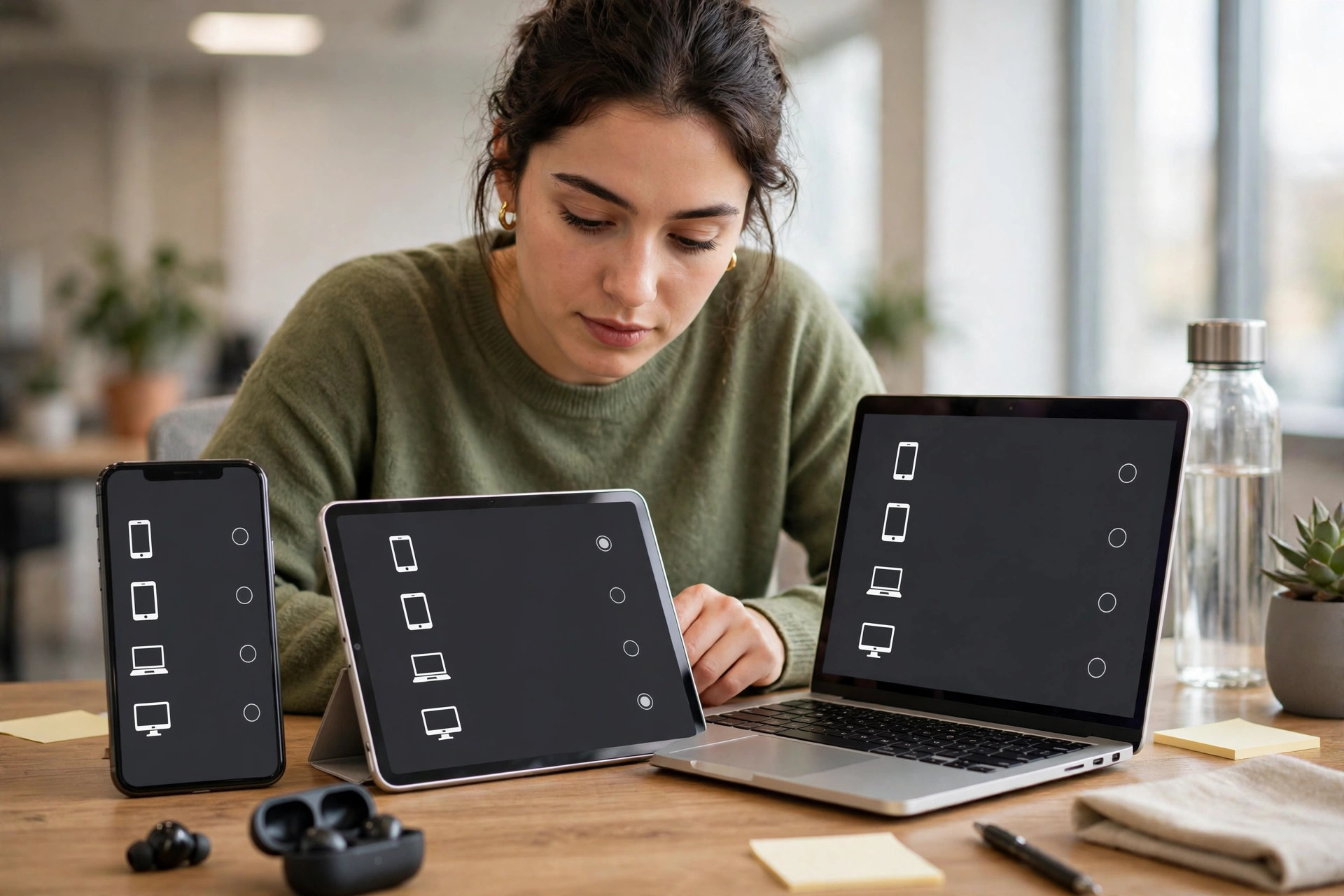
Most of us have signed in to our accounts on more devices than we can remember: an old phone in a drawer, a work laptop, a partner’s tablet, a TV at a holiday rental.
Checking which devices are logged in to your accounts is one of the fastest and most reassuring security habits you can build. It takes only a few minutes per account, shows you exactly where you are signed in, and lets you remove anything you do not recognise.
Quick Answer
Open each important account’s security or privacy settings and look for a section called Your Devices, Device Activity, or Active Sessions. Review every entry by device type, location, and last active date.
Why Old and Forgotten Sessions Matter
When you sign in and tick Remember Me, the service creates a long-lived session so you are not asked for your password every day. That convenience is safe on your own locked phone, but risky on a shared computer or a phone you later sell without fully wiping.
Reviewing sessions also gives you early warning of a genuine intrusion. An unfamiliar city, a device type you do not own, or activity at a time when you were asleep are all clues worth acting on quickly.
The review is also a good moment to tidy up. Removing old phones, former work devices, and one-off sign-ins reduces your exposure and makes future checks faster, because a short list of current devices is far easier to scan than a long list of forgotten entries.
Before You Start: What the Device List Shows
Most device lists show four things for each session: the device type and browser, such as Windows PC with Chrome or iPhone with Safari; an approximate location based on the internet connection.
Prepare by having your current phone and computer beside you. As you review each account, you can confirm which entry is the device in your hand, often marked This Device, and then work calmly through the rest. If you want broader account protection ideas while you work, NetworkUstad’s account security guides explain passwords, recovery options, and two-factor setup in the same step-by-step style.
How to Check Devices on Google Accounts
- Go to your Google Account: On a trusted device, open your Google Account page and select the Security section.
- Find Your Devices: Scroll to the panel labelled Your Devices and choose Manage All Devices. You will see phones, computers, and other sessions grouped together.
- Review each entry: Select a device to see when it first signed in, when it was last active, and its approximate location. Compare these details with devices you own.
- Sign out anything unfamiliar: Open the entry and choose Sign Out. The device will need your password — and your second factor, if enabled — to sign in again.
- Check recent security activity: Return to the Security page and review recent alerts and activity for password changes, new sign-ins, or recovery changes you do not recognise.
Google’s own instructions in Google’s help page on reviewing devices that have account access describe the same panels and are worth bookmarking if you manage accounts for family members as well.
How to Check Devices on Microsoft Accounts
- Sign in to your Microsoft account: Open the account homepage on a trusted browser and go to the Privacy or Security area, then look for sign-in activity.
- Review successful and unsuccessful sign-ins: The activity page shows recent sign-ins with device, browser, location, and whether each attempt succeeded. Unusual failed attempts from distant locations usually mean someone tried your password, which is a strong reason to strengthen it.
- Open the Devices page: The separate Devices section lists computers and consoles linked to your account. Remove devices you have sold, lost, or no longer use.
- Secure the account if anything looks wrong: Change your password to a long, unique one, review recovery email and phone details, and confirm two-step verification is switched on.
How to Check Devices on Apple Accounts
- On iPhone or iPad: Open Settings, tap your name at the top, and scroll down. Every device signed in to your Apple Account appears in a list at the bottom of that screen.
- On a Mac: Open System Settings, select your name, and review the same device list.
- Inspect and remove: Tap any device to see its model and details. If you do not recognise it or no longer own it, choose Remove from Account and confirm.
- After removing a device: Change your Apple Account password and check that trusted phone numbers for two-factor authentication are current and belong to you.
Apple documents this process in Apple’s support page for viewing and removing devices linked to your account, including what to do if a device reappears after removal.
How to Check Social Media, Streaming, and Other Accounts
The same pattern repeats almost everywhere, even if the labels differ. In social media apps, look in Settings for Security, Accounts Centre, or Password and Security, then find Logged-In Devices or Active Sessions.
For streaming services, open Account or Profile settings on the website rather than in the TV app, where options are limited. Look for Manage Devices, Recent Streaming Activity, or Signed-In Devices.
For email, shopping, and banking apps, check both the website settings and the app’s own security menu, because some services list app sessions and web sessions separately. Banks tend to use labels such as Registered Devices or Trusted Devices.
What to Do If You Find an Unknown Device
- Sign it out immediately: Use the Sign Out or Remove option for that session from your trusted device.
- Change your password: Create a new, long, unique password in a password manager. Changing the password usually ends all other sessions as well; if the service offers Sign Out Everywhere, use it.
- Turn on or reset two-factor authentication: If it was off, switch it on using an authenticator app. If it was already on and an unknown device still appeared, reset it and review your recovery codes and trusted numbers.
- Check account changes: Review your profile email, recovery addresses, forwarding rules in email, payment methods, and recent orders or messages for anything you did not do.
- Secure your email first if several accounts look wrong: Email controls password resets for everything else, so protect it before working through other services.
- Contact the provider if you are locked out or see fraud: Use the official support route from the provider’s website or app — never contact details from a suspicious email or pop-up.
A Simple Monthly Routine
You do not need to check every account you own. Focus on the five that matter most: your primary email, your Apple, Google, or Microsoft account, your main social media account, your primary shopping account, and your bank.
Common Mistakes to Avoid
- Panicking over a slightly wrong location: Mobile networks and internet providers often show a different city. Check device type and timing before assuming the worst.
- Signing out only the unknown device and stopping there: Always follow removal with a password change and a two-factor check.
- Forgetting TVs, sticks, and shared computers: Sessions on other people’s screens are the ones most often forgotten and most worth removing.
- Selling a phone without signing out and wiping it: Remove the device from your accounts first, then perform a full factory reset.
- Ignoring failed sign-in attempts: Repeated failed attempts from far away mean your password may be known or guessed — change it and enable two-factor authentication.
- Using contact details from a suspicious alert email: Always navigate to the service yourself by typing its address or opening its official app.
Conclusion
Your accounts remember every device you have ever trusted, long after you have forgotten them. A short review of the device and session lists in your key accounts puts you back in control: current devices stay signed in smoothly.
Work through your email and main platform account today, then add the rest to a simple monthly routine. It is one of the highest-value security checks available to you — free, quick, and entirely within your own settings.
Frequently Asked Questions
How often should I check which devices are logged in?
Check your most important accounts once a month, and immediately whenever you lose a device, sell or give one away, sign in on a shared computer, or receive a security alert about a new sign-in you do not recognise.
The location shown for my own device is wrong. Should I worry?
Usually not. Locations are estimated from your internet connection and mobile networks often appear in a different city. If the device type, browser, and activity times match your own use, it is almost certainly your session. If several details look wrong together, sign it out and change your password.
Will signing out a device delete my data?
No. Signing out only ends that device’s access to the account. Your emails, photos, files, and purchase history stay in the account itself. The device will simply need your password and second factor to sign in again.
What is the difference between removing a device and changing my password?
Removing a device ends that one session or trusted link. Changing your password protects the account itself and, on most services, forces all devices to sign in again. After finding an unknown device, do both for complete protection.
Can I check devices for a family member’s account?
Only with their permission and ideally with them present. Sign in together on their trusted device, review the list, and help them remove old sessions and enable two-factor authentication. Never check someone else’s account without their knowledge, even within a family.



Leave a Reply