
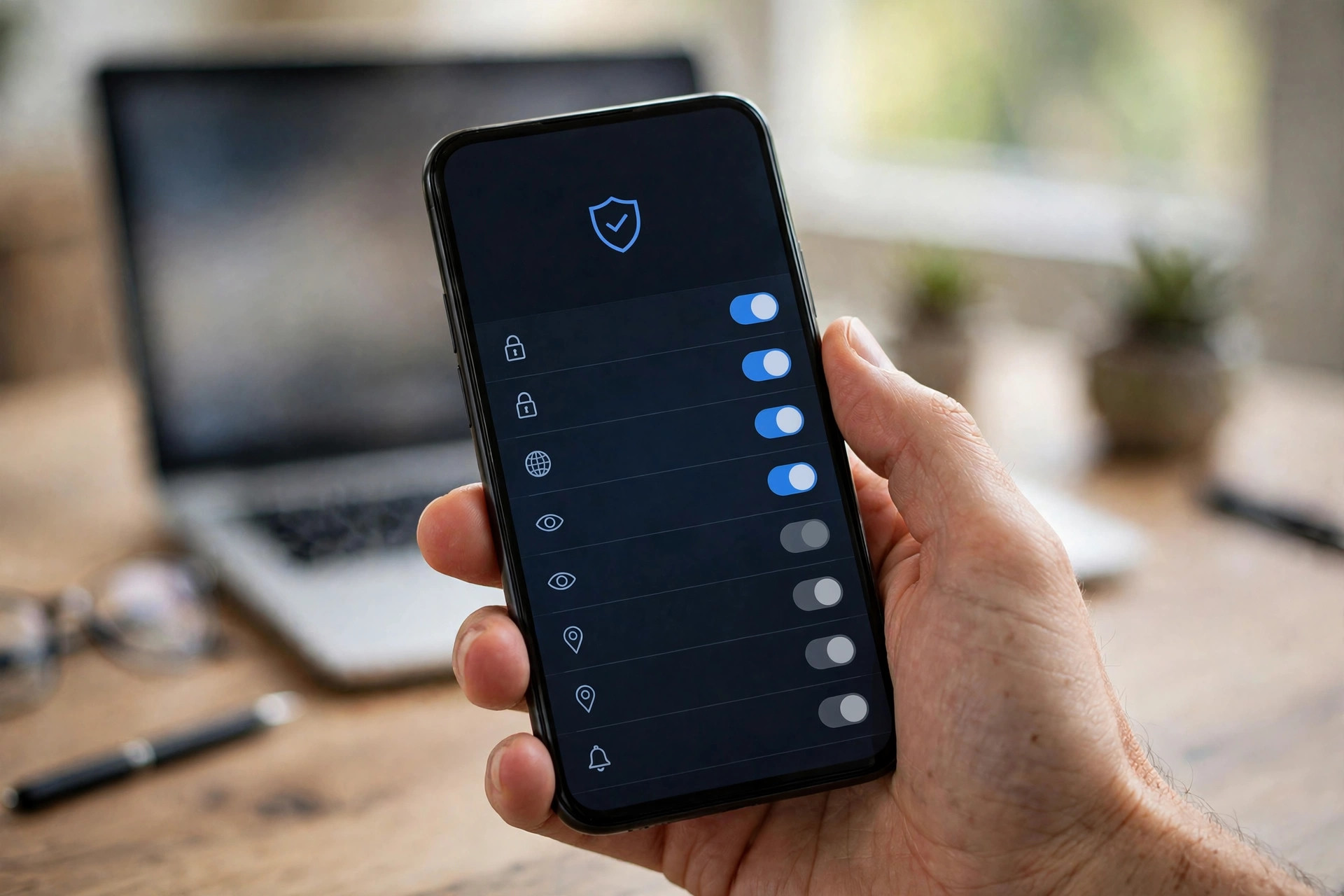
Your phone, tablet, and computer microphone can listen to far more than voice calls. Voice assistants, video meetings, social media apps, games, and even some utilities request microphone access — and once you tap “Allow,” many people never think about it again.
The concern is not that every app is spying on you; most use the microphone legitimately. The problem is not knowing which apps have permission, leaving the door open for buggy, intrusive, or simply unnecessary access to one of your most private sensors.
This guide shows you exactly where to check microphone permissions on Android, iPhone, Windows, and Mac, how to tell when the microphone is active, and how to clean up permissions in a few minutes without breaking the apps you rely on.
Quick Answer
On iPhone, go to Settings > Privacy & Security > Microphone. On Android, go to Settings > Privacy > Permission Manager > Microphone.
On Windows, open Settings > Privacy & security > Microphone. On Mac, open System Settings > Privacy & Security > Microphone.
Review each list, switch off access for any app that does not clearly need it, and look for the orange or green indicator dot that shows when the mic is live.
Why Microphone Permissions Deserve a Regular Check
Microphone access is more sensitive than most permissions. A camera shows a view; a microphone captures conversations, background voices, children, colleagues, and confidential discussions — including people who never agreed to use the app at all.
Permissions also accumulate over time. You might have granted access to a voice recorder for one project, a game for voice chat during one weekend, or a shopping app for a voice search feature you used once. Each grant remains in place until you remove it.
There is also a simple trust question: an app that asks for the microphone but has no obvious voice feature deserves scrutiny. Legitimate developers explain why access is needed. If the reason is unclear, the safest default is to deny access and see whether anything you actually use stops working — you can always grant it again later.
Our broader cyber security and privacy guides cover camera, location, and contacts permissions in the same practical, plain-language style if you want to complete a full privacy clean-up.
How to Check Microphone Access on iPhone and iPad
Apple places all sensor permissions in one privacy area, and recent versions of iOS also show you when the microphone is in use and which apps used it recently.
- Open Settings, then tap Privacy & Security.
- Tap Microphone. You will see every app that has requested access, each with a toggle.
- Switch off the toggle for any app that does not need to record audio — for example, games without voice chat, shopping apps, or tools you no longer use.
- Watch for the indicators: an orange dot at the top of the screen means the microphone is active right now. Swipe down to open Control Centre to see which app is using it or used it most recently.
- Optionally, open Settings > Privacy & Security > App Privacy Report (if enabled) to review how often apps accessed the microphone over the past seven days.
Apple’s official support documentation on controlling app access to information on iPhone explains these privacy controls in detail, including how to review permissions for other data types in the same screens.
How to Check Microphone Access on Android
Android’s layout varies a little between manufacturers, but the Permission Manager exists on all modern versions and gives you the same complete overview.
- Open Settings, then tap Privacy (on some phones, Security and privacy).
- Tap Permission Manager or Privacy dashboard, then select Microphone.
- Review the three groups: apps allowed all the time, apps allowed only while in use, and apps not allowed. Microphone access should almost never be set to “all the time.”
- Tap any app to change its setting to Don’t allow or Ask every time. Choosing “Ask every time” is a good middle ground for apps you use occasionally for voice notes or calls.
- Look for the green dot or microphone icon in the status bar, which appears when the mic is active. Pull down the notification shade and tap the indicator to see which app is responsible.
- Use the Privacy dashboard timeline to spot unusual activity — for example, an app accessing the microphone at times you were not using it.
Google’s help centre provides step-by-step instructions to change app permissions on an Android phone, including how the “ask every time” and auto-reset options work on newer versions.
How to Check Microphone Access on Windows
Windows 11 keeps microphone controls in the Privacy & security section, and it also shows recent activity so you can see which apps used the mic and when.
- Open Settings > Privacy & security, scroll to App permissions, and click Microphone.
- Check the master switch — “Microphone access” — and the “Let apps access your microphone” switch below it.
- Review the per-app list and turn off access for anything that does not need audio input, such as games, store apps, or utilities.
- Scroll further to see recent activity entries showing which apps last accessed the microphone and at what time.
- Remember desktop programs: traditional apps installed outside the Microsoft Store are covered by the separate “Let desktop apps access your microphone” toggle. If you turn that off, tools like older meeting software will stop working, so manage individual desktop apps within their own settings instead.
When the microphone is in use, Windows shows a microphone icon in the system tray. Hovering over it tells you which app is currently using the mic — get into the habit of glancing at it if you hear or suspect unexpected activity.
How to Check Microphone Access on Mac
macOS asks apps to request the microphone individually and keeps the approved list in one place, where you can revoke access at any time.
- Open System Settings (or System Preferences on older versions) and go to Privacy & Security.
- Click Microphone to see every app that has requested access.
- Toggle off any app you do not recognise or no longer use for calls, recording, or dictation — browsers, meeting apps, and recording tools are the usual legitimate entries.
- Look for the orange dot in the menu bar / Control Centre, which appears whenever the microphone is active, and click Control Centre to see which app is using it.
If an app you removed later genuinely needs the microphone, it will simply ask again the next time you use a voice feature. Revoking access is reversible and low-risk, which makes a firm clean-up the sensible default.
Tips for Staying in Control Over Time
Set a quarterly reminder to repeat this five-minute review on each device. New apps arrive constantly, and permission creep returns quietly if you never re-check.
Prefer “only while using the app” or “ask every time” over permanent access wherever the option exists. Both settings dramatically reduce background access while keeping features convenient.
Pay attention to the live indicators — the orange dot on iPhone and Mac, the green dot on Android, and the tray icon on Windows. They are the fastest way to catch an app using the microphone when you did not expect it. If an app repeatedly triggers the indicator for no clear reason, remove its permission and consider uninstalling it.
Finally, keep your operating system updated. Privacy dashboards, indicators, and automatic permission resets for unused apps all arrived through updates — older systems give you far less visibility and control.
Conclusion
You cannot manage what you cannot see, and microphone permissions were quietly scattered across devices for years. Modern systems have fixed that: every platform now offers one clear list, a live indicator when the mic is active, and a history view if you want it.
Take five minutes today to open the microphone list on your phone and computer, turn off anything without an obvious voice purpose, and switch occasional apps to “ask every time.” Nothing important will break — apps can always request access again when you use a voice feature.
Repeat the check every few months and glance at the indicator dot when it appears. Those two small habits give you lasting control over one of your most private sensors, instead of leaving it to defaults you chose years ago and forgot.
Frequently Asked Questions
Why is there an orange or green dot at the top of my phone screen?
That indicator means an app is using your microphone right now — orange on iPhone and Mac, green on most Android phones. Open Control Centre or pull down the notification shade to see exactly which app is responsible.
Will turning off microphone access break my apps?
Only the voice features will stop working — for example, voice notes or in-app calls. The rest of the app will work normally, and if you later use a voice feature, the app will simply ask for permission again so you can grant it then.
Can apps listen to me even when permission is turned off?
No. On modern iOS, Android, Windows, and macOS, the operating system blocks microphone access when permission is denied, and the on-screen indicator shows whenever the mic is active. Keeping your system updated ensures these protections work as designed.
Should any app have microphone access “all the time”?
Very rarely. Voice assistants you deliberately invoke hands-free are the main exception people choose. For almost everything else, “only while in use” or “ask every time” gives you the feature without permanent background access.
How can I quickly mute the microphone for a sensitive meeting?
On Android, use the Microphone toggle in Quick Settings. On iPhone, revoke access for specific apps or simply close them — the orange dot confirms nothing is listening. On Windows and Mac, use the privacy settings lists, or mute the input in sound settings for a system-wide stop.



Leave a Reply