
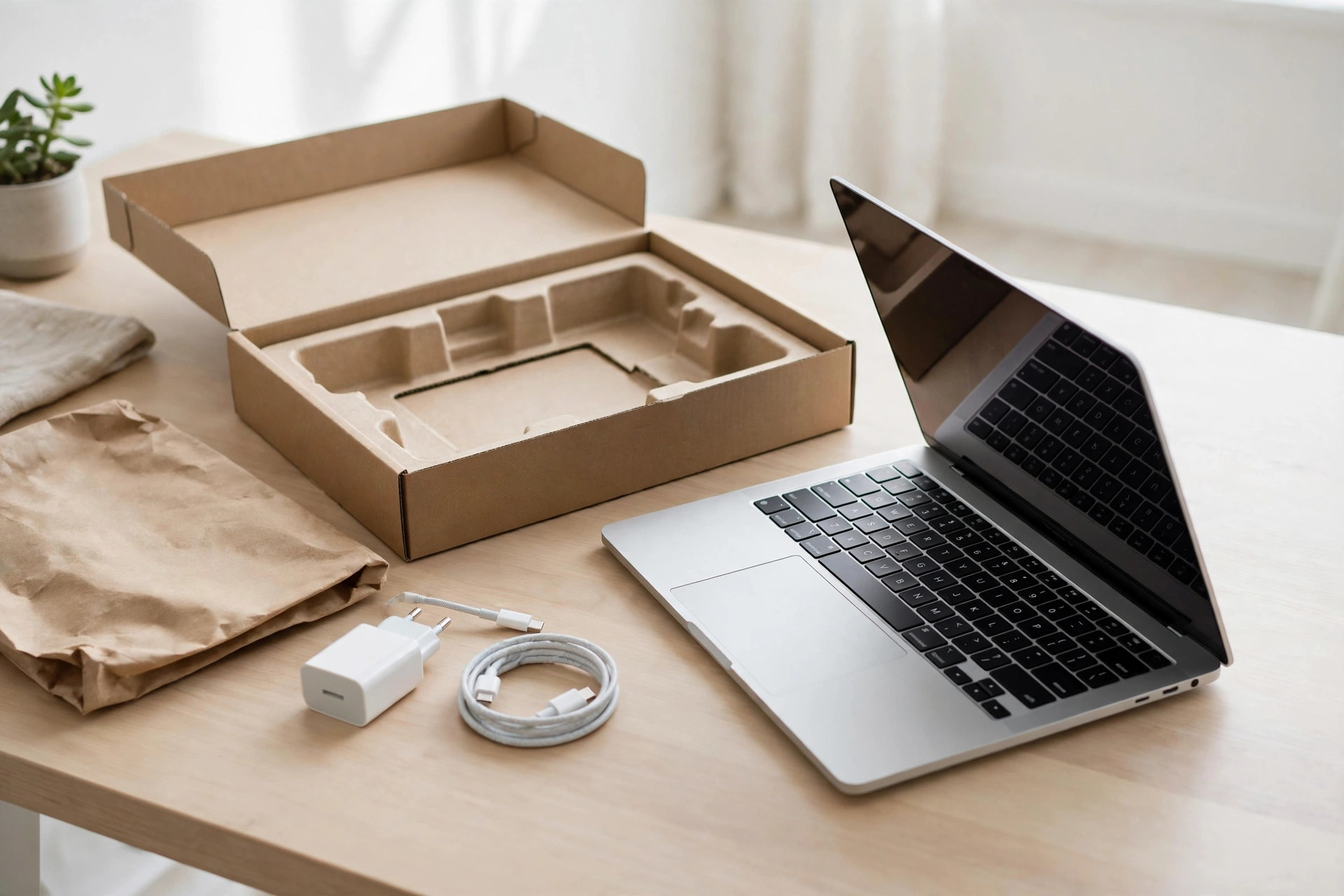
Unbox a brand-new Windows laptop and, before you have installed a single program of your own, the Start menu is already crowded. There are trial antivirus packages nagging you for payment, casual games you never asked for, shopping shortcuts, streaming trials, and a handful of manufacturer utilities all competing for attention. That pre-installed clutter is bloatware, and while it is rarely dangerous, it wastes storage, slows startup, and buries the tools you actually want.
The good news is that removing bloatware from a new Windows laptop is safe and straightforward when you work methodically. You do not need specialist cleaning software — in fact, avoiding it is part of doing the job properly. This guide shows you what to remove, what to keep, and the correct Windows menus for every step, so your new machine starts life lean and fast.
What Counts as Bloatware?
Bloatware is any pre-installed software you did not choose and do not need. It usually falls into four groups. Trial software includes antivirus suites, office trials, and VPN or password-manager offers that expire and then nag you to subscribe. Manufacturer extras range from genuinely useful driver tools to redundant media players, registration apps, and support assistants that duplicate what Windows already does. Games and entertainment apps — puzzle games, streaming trials, shopping portals — are installed because partners paid for the placement. Finally, there are duplicate utilities: a third-party photo viewer, PDF reader, or file cleaner that adds nothing over the built-in Windows apps.
Why do manufacturers do this? Those placement deals subsidise the price of the laptop. Understanding that helps you remove the clutter without paranoia: most of it is marketing, not malware. You can read more about the practice in the overview of pre-installed software on Wikipedia. The exception to keep in mind is that a small number of components — graphics control panels, audio tuning apps, and hardware-specific hotkey or battery tools — genuinely support your machine and should stay.
Step 1: Make a Safety Net Before You Remove Anything
Your laptop is new, so this takes two minutes and is worth it. First, create a restore point: search Create a restore point from Start, open the System Protection tab, and click Create. If you remove something you later want back, you have a way to undo it. Second, let Windows Update finish its initial work through Settings > Windows Update, so you are judging the machine’s speed after updates, not during them. Finally, note your laptop’s exact model from Settings > System > About; if you ever need a driver or utility again, the manufacturer’s support page for that model is where the clean copy lives. Readers who enjoy this kind of careful setup will find more at NetworkUstad’s new PC setup guides once this cleanup is done.
Step 2: Uninstall Apps From Settings
The main cleanup happens in one place. Open Settings > Apps > Installed apps. You will see every installed program listed, sortable by name, size, or install date. Sorting by size is a quick way to spot heavyweight trials you will never use.
Work down the list. For each app you are sure you do not want, click the three dots beside it and choose Uninstall, then confirm. Typical safe removals on a new laptop include trial antivirus suites (Windows Security is built in and fully capable), trial office packages if you already have a licence or use free alternatives, pre-installed games and game launchers you do not play, streaming and shopping apps, news and weather apps you will not open, and duplicate media or PDF tools. Take your time, and if you are unsure about an item, search its name before removing it — or simply leave it until the end and decide then. Uninstalling is a one-way door for the app’s settings, though the app itself can almost always be downloaded again from the Microsoft Store or the maker’s website.
Step 3: Remove Microsoft Store Apps and Start Menu Clutter
Some clutter does not appear as traditional programs. Right-click any unwanted tile or app in the Start menu — the sponsored games and social apps are the usual suspects — and choose Uninstall directly from the menu. For anything that will not uninstall that way, Settings > Apps > Installed apps covers the same ground.
While you are tidying the Start menu, unpin what you do not use by right-clicking and choosing Unpin from Start. Unpinning does not remove the app; it simply gives you a Start menu that shows your tools instead of advertisements. Also open Settings > Personalisation > Start and turn off Show recommendations for tips, shortcuts, new apps, and more if you prefer Windows to stop suggesting content there.
Step 4: Stop Unwanted Apps Running at Startup
Uninstalled apps are gone for good, but some software you keep still slows a new laptop by launching itself at every sign-in. Press Ctrl + Shift + Esc to open Task Manager and open the Startup apps tab. Each entry shows a Startup impact rating. Disable the ones you do not need immediately at boot — game launchers, media helpers, chat apps you open manually, and manufacturer updaters you have replaced with Windows Update. Right-click an item and choose Disable; this never uninstalls anything, and you can re-enable it in the same place.
You can manage the same list in Settings > Apps > Startup, which some people find clearer. Either way, the result is a laptop that reaches a usable desktop noticeably faster, which is the single most satisfying improvement of the whole cleanup.
What You Should Not Remove
Enthusiasm needs a boundary. Keep Microsoft Visual C++ Redistributable packages, .NET components, and anything labelled as a driver, chipset, firmware, or device software — other programs depend on them, and their names look like clutter to the untrained eye. Keep your graphics maker’s control software, such as the NVIDIA or AMD app, because it manages driver updates for gaming and creative work. Keep the manufacturer’s battery or hotkey utility if your function keys or charge limits depend on it; you can test by checking whether those features live in that app. Keep Windows Security exactly as it is. And be cautious with anything you cannot identify: a quick search of the exact name plus your laptop model will tell you whether it is safe.
Microsoft’s own advice on keeping a PC running well, including managing storage and startup behaviour, is collected in its tips to improve PC performance in Windows, and it aligns with the conservative approach in this guide.
Step 5: Finish With Storage and Notification Cleanup
With the apps gone, reclaim the remaining space and silence the nagging. Open Settings > System > Storage and turn on Storage Sense so Windows automatically clears temporary files in future. Under Cleanup recommendations you can remove leftover installation files from setup. Then open Settings > System > Notifications and switch off notifications for apps you kept but do not want hearing from, and scroll down to disable the additional settings that offer Windows tips and suggestions — the polite name for more advertising. Restart the laptop once at the end and enjoy how much calmer it feels.
Common Mistakes to Avoid
The worst mistake is installing a miracle cleaner or driver updater to do this job; those tools are often bloatware themselves, and some charge subscriptions for what Settings does free. Avoid deleting folders inside Program Files by hand instead of uninstalling properly, because that leaves broken registry entries and services behind. Do not remove components you cannot identify, especially redistributables and drivers. And do not judge the laptop’s speed until Windows Update has fully finished — a new machine still updating in the background feels slow for reasons that have nothing to do with bloatware.
Conclusion
Removing bloatware from a new Windows laptop is a one-time investment of about half an hour that pays off every single day: faster startups, a cleaner Start menu, more storage, and far fewer pop-ups begging for subscriptions. Work through Settings > Apps > Installed apps, clear the Store clutter, tame the startup list, and protect the drivers and components Windows genuinely needs. Create a restore point first, remove confidently but conservatively, and your new laptop will finally feel like yours.
Frequently Asked Questions
Is it safe to remove pre-installed apps from a new laptop?
Yes, for the obvious trials, games, and duplicate apps it is completely safe. The risk only appears if you remove drivers, Visual C++ packages, or hardware utilities. When in doubt, search the app’s name with your laptop model before uninstalling it.
Will removing bloatware void my warranty?
No. Uninstalling software through Settings does not affect your hardware warranty. Manufacturers may reinstall their standard software image if the laptop is ever serviced, but you are free to remove it again afterwards.
Do I need a third-party uninstaller or cleaner?
No. Settings > Apps > Installed apps and Task Manager’s Startup tab handle everything in this guide. Many third-party cleaners add their own clutter, advertising, or subscriptions, which defeats the purpose of the cleanup.
What should I do if I removed something I actually needed?
Most apps can simply be downloaded again from the Microsoft Store or the manufacturer’s support page for your model. If the removal caused wider problems, use the restore point you created before starting to roll the system back.
How much performance will I actually gain?
The biggest gains are faster startup, fewer background processes, and reclaimed storage rather than raw processing speed. On a typical new laptop, disabling unnecessary startup apps and removing trials noticeably shortens boot time and reduces interruptions.



Leave a Reply