
Your laptop feels fine on battery, but plug in the charger and within minutes the fan is roaring, the underside is uncomfortably warm, and performance may even start to stutter. It is a common experience, and it naturally raises a worrying question: is something wrong with my machine, or is this just what laptops do when charging?
The honest answer is a bit of both. Charging generates heat, and Windows deliberately allows your laptop to work harder while it is on mains power. But excessive heat — a case too hot to rest on your lap, fans at full speed during light tasks, or sudden shutdowns — is a sign that something needs attention. This guide explains why laptops run hotter on the charger, how to tell normal warmth from a real problem, and the practical fixes that actually lower temperatures.
Why Charging Makes a Laptop Hotter
Start with the battery itself. Converting electricity from your charger into chemical energy inside a lithium-ion battery is not perfectly efficient, and the waste energy leaves as heat. Fast charging makes this more noticeable, because pushing power into the battery quickly — especially between roughly 20 and 80 percent charge — produces more warmth than slow, gentle charging. The charging circuitry on the motherboard works hard at the same time, adding its own heat near the charging port.
The second reason is performance policy. On battery, Windows and the laptop’s firmware deliberately limit the processor to save energy. Plug in, and those limits lift: the CPU and graphics chip are allowed to draw more power and reach higher clock speeds, which means more heat. You can see this behaviour in Settings > System > Power & battery, where power mode recommendations change depending on whether you are plugged in. Background tasks join in too — Windows Update, antivirus scans, photo indexing, and cloud sync all prefer to run while charging, because the system assumes power is plentiful. For a broader understanding of how these cells store energy and age, the explanation of lithium-ion battery behaviour on Wikipedia is a solid, readable reference.
How Hot Is Too Hot?
Warm is normal; alarming is different. A laptop that feels warm around the keyboard and vents during charging and moderate work is behaving as designed. Warning signs include the fan running at maximum during simple browsing, the machine becoming too hot to keep on your lap, games or apps slowing down after several minutes plugged in, the battery swelling or lifting the trackpad, and the laptop shutting itself off without warning. Internal processor temperatures in the 70s and low 80s Celsius under load are typical, while sustained temperatures in the high 90s mean the cooling system cannot keep up and the processor will throttle — deliberately slow itself down — to protect itself.
If your laptop is doing heavy work while charging, give it a fair test first: close demanding apps, let it idle on the charger for ten minutes, and see whether the fans calm down. If they do, the heat was workload, not a fault. If the machine stays hot and loud while doing nothing, work through the fixes below, and browse NetworkUstad’s laptop care and troubleshooting guides for related maintenance help once you have finished here.
Improve Airflow Around the Laptop
Cooling starts with air. Most laptops pull cool air in through vents on the underside and push hot air out of the side or rear. Using the machine on a bed, sofa, or blanket smothers those intake vents, and temperatures climb within minutes — even faster while charging. Always work on a hard, flat surface such as a desk or table, and keep the exhaust vents clear of walls and clutter.
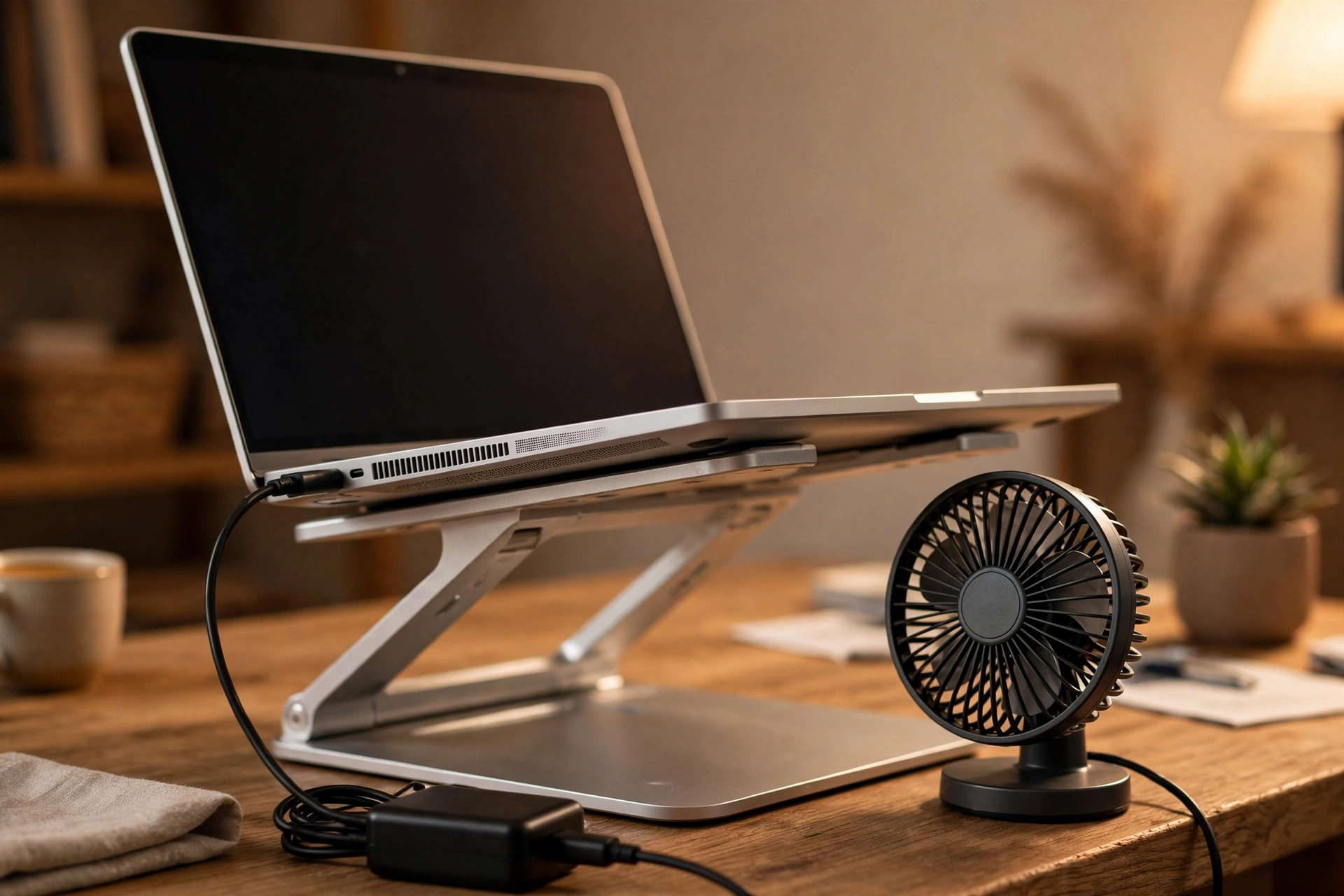
A laptop stand helps twice: it lifts the rear of the machine so air flows freely underneath, and it improves your posture. A cooling pad with fans can shave off a few more degrees, particularly on older machines. Also check the vents themselves for dust build-up. With the laptop off and unplugged, clear visible dust from the grilles with a soft brush or short bursts of compressed air held upright, working from a few centimetres away so you do not drive dust deeper inside.
Reduce the Workload While Charging
If heat spikes mainly when charging, look at what the laptop is doing in those moments. Press Ctrl + Shift + Esc to open Task Manager and click the CPU column to sort by usage. A browser with dozens of tabs, a game launcher updating in the background, or a stuck Windows Update can quietly pin the processor. Close what you do not need, and pause large downloads until the battery is fuller and the machine is cooler.
Next, review startup programs. In Task Manager, open the Startup apps tab and disable anything you do not need launching at sign-in. Then open Settings > System > Power & battery and set Power mode to Balanced or Best power efficiency while you troubleshoot; the Best performance mode invites the processor to boost aggressively and generate extra heat for very little real-world gain in everyday tasks. Finally, let Windows finish its pending updates rather than repeatedly interrupting them — a half-updated system can loop its background work for days.
Check the Charger, Battery, and Power Settings
Not all chargers are equal. A cheap, underpowered, or counterfeit charger can run hot itself and make the laptop’s charging circuitry work inefficiently. Whenever possible, use the charger supplied with the laptop, or a reputable replacement with the same wattage and connector. If the charging brick becomes too hot to hold comfortably, stop using it and replace it — that is a safety issue, not a comfort issue.
Battery health matters too. An ageing battery becomes less efficient, produces more heat, and may swell. In Windows, you can generate a battery report by opening Terminal or Command Prompt and typing powercfg /batteryreport, then opening the saved HTML file to compare the design capacity with the current full-charge capacity. A large drop means the battery is worn. Many manufacturers also provide charging limits in their own apps or BIOS — capping charge at 80 percent for desk-bound use reduces heat and slows battery wear significantly. Microsoft’s guidance on caring for your battery in Windows covers these habits in more detail.
Clean the Inside and Refresh Thermal Paste
For laptops more than a couple of years old, internal dust is the silent culprit. Dust mats form on the fan blades and the radiator fins where hot air exits, and no amount of software tuning compensates for blocked cooling. If you are confident opening your model — and it is out of warranty — a careful internal clean can transform temperatures. If not, a reputable repair shop can do it inexpensively.
The same applies to thermal paste, the compound between the processor and its heatsink. After several years it dries out and transfers heat poorly. Replacing it is a job for experienced hands, but on a four- or five-year-old laptop that overheats despite clean fans, fresh paste is often the real cure rather than a new machine.
Common Mistakes to Avoid
The biggest mistake is charging and using a laptop on soft bedding, then assuming the machine is faulty when it cooks itself. Another is ignoring a swollen battery: stop using the laptop, do not charge it, and have the battery replaced promptly, because swelling is a genuine hazard. Avoid covering vents with stickers or skins, avoid stacking the running laptop on top of another warm device, and do not use phone chargers or random USB-C adapters with far lower wattage than the laptop expects. Finally, do not disable fans or power protections through obscure utilities — the limits exist to protect components that heat would otherwise destroy.
Conclusion
A laptop running warmer while charging is usually physics, not failure: the battery heats as it fills, and Windows unlocks full performance the moment mains power arrives. It becomes a problem only when heat is excessive, constant, or paired with slowdowns and shutdowns. Work through airflow, workload, charger, and battery health first, and clean the cooling system on older machines. Those steps resolve most cases — and if a swollen battery or a scorching charger is involved, treat it as the safety priority it is and get it replaced.
Frequently Asked Questions
Is it normal for a laptop to get hot while charging?
Yes, mild to moderate warmth is normal. Charging produces heat in the battery and charging circuits, and the processor is allowed to work harder on mains power. Heat becomes a concern when fans stay at full speed during light tasks or the case is too hot to touch comfortably.
Should I stop using my laptop while it charges?
You do not need to stop, but lighter use helps. Gaming or video editing while fast-charging combines two heat sources at once. If temperatures worry you, charge first and do heavy work afterwards, or use the laptop on a hard desk with good airflow.
Can overheating while charging damage the battery?
Sustained high temperatures accelerate battery wear and shorten its overall lifespan. Keeping vents clear, avoiding soft surfaces, and using a manufacturer charge limit of around 80 percent for mostly desk-based use all help preserve battery health.
Why does my charger itself get very hot?
Chargers warm up as they convert power, but a brick that is too hot to hold, smells odd, or cuts out should be replaced. Use the original charger or a reputable one with the correct wattage, and never cover the adapter while it is working.
When should I take an overheating laptop to a repair shop?
Go if the laptop shuts down from heat, the battery is swelling, fans grind or stop, or temperatures stay extreme after cleaning the vents and reducing workload. Those signs point to hardware problems — fans, paste, or battery — that software cannot fix.



Leave a Reply