
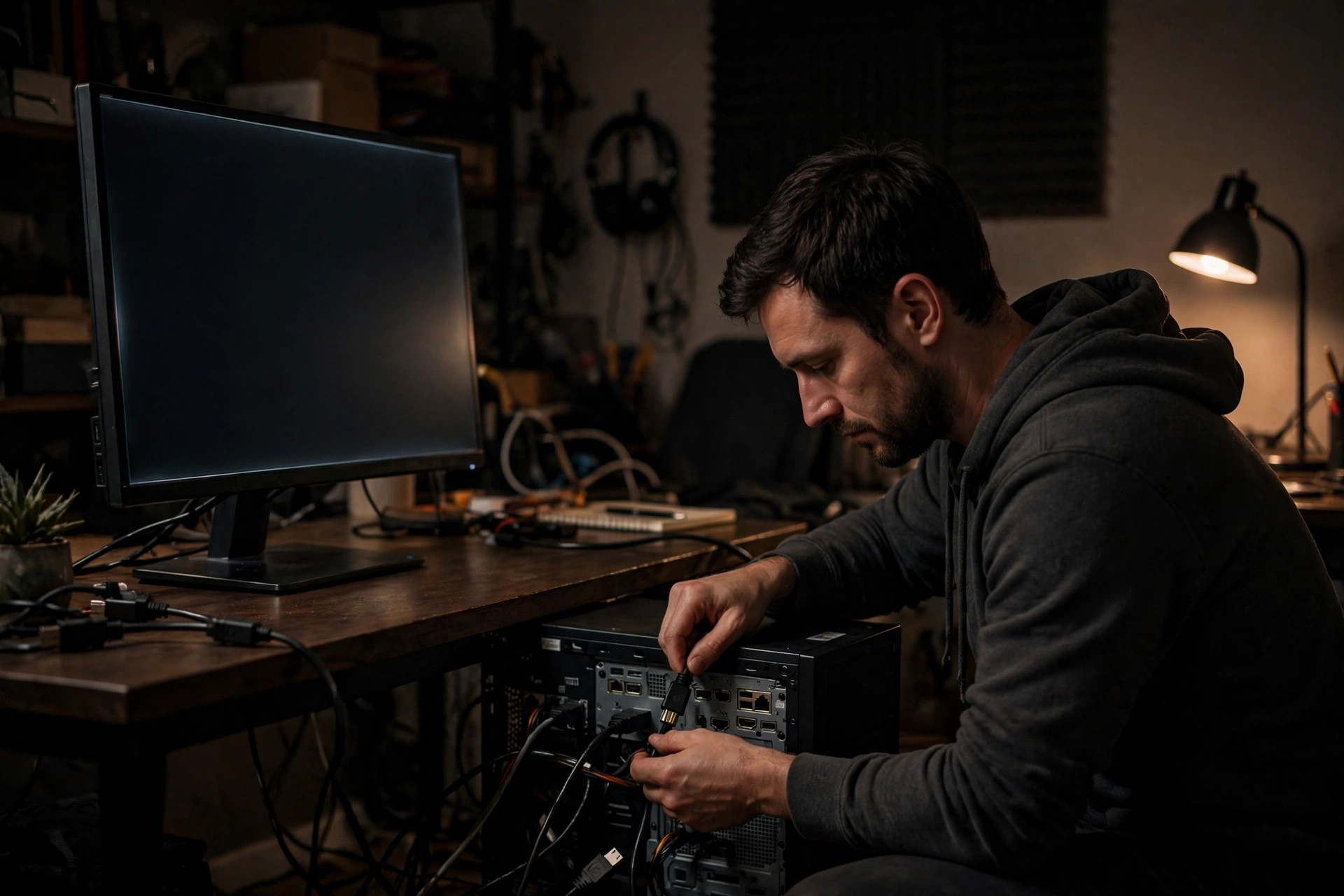
Few PC problems feel as serious as pressing the power button and getting a black screen. No desktop, no login box, sometimes not even a logo — just darkness and the sound of fans. Yet a black screen on Windows startup is a symptom, not a diagnosis. It can mean a loose monitor cable, a display waking slowly, a stuck graphics driver, a failed update, or, less often, failing hardware, and most of those causes are fixable at home.
The key is to work in order and pay attention to small clues. Do you see the manufacturer’s logo first? Does a mouse pointer appear? Can you hear the Windows startup sound? Each answer narrows the problem down. Follow the steps below from the simplest checks upward, and stop as soon as the picture returns.
Step 1: Rule Out the Monitor, Cable, and Power
Start outside Windows entirely. Confirm the monitor is switched on and its power light is lit, and check that it is set to the correct input source — HDMI 1, HDMI 2, or DisplayPort — using the monitor’s own buttons, because monitors do not always switch automatically. Unplug and firmly reconnect the display cable at both ends. If you have a spare cable or a spare port on the PC, try it; damaged HDMI and DisplayPort cables cause more black screens than most people expect.
Desktop owners should make one specific check: the monitor cable must plug into the graphics card, low down on the back of the case, not into the motherboard’s video ports higher up. Laptop owners should raise the screen brightness with the keyboard keys, and disconnect external monitors, docks, and USB drives, then try again. A PC trying to boot from a forgotten USB stick can sit on a black screen for a long time, and after a major update a first boot can legitimately stay dark for several minutes.
Step 2: Note What You Can See and Hear
If the basics check out, observe carefully. A visible mouse pointer on a black background usually means Windows has loaded but the desktop shell or display driver has failed — a software problem, and a hopeful sign. A blinking cursor in the top corner suggests the PC is stuck before Windows loads. No logo at all, with beeping from the case, points toward hardware such as memory or the graphics card, and desktop users can note the beep pattern for the motherboard manual.
If you hear the startup sound or notification sounds, Windows is almost certainly running behind the black screen. On a laptop, try the display toggle key — often Fn plus one of the F keys with a screen icon — in case the image is being sent to a non-existent external display. Also try pressing Windows key + Ctrl + Shift + B. This restarts the graphics driver without restarting the PC; you should hear a short beep and the screen may flash and return. It is one of the quickest fixes for a black screen that appears after sleep or at the login stage. More recovery walkthroughs in this style are collected in our Windows startup and recovery guides at NetworkUstad.
Step 3: Try Ctrl + Alt + Delete and Restart Explorer
When a pointer is visible, press Ctrl + Alt + Delete. If the security screen appears in full colour, Windows itself is alive. Cancel back, then press Ctrl + Shift + Esc to open Task Manager. If Task Manager appears, select Run new task from the File menu or the top of the window, type explorer.exe, and press Enter. If the desktop and taskbar appear, the Windows shell had simply failed to start.
From a working desktop, restart the PC properly once through the Start menu rather than continuing to use a patched-up session, then watch the next startup closely. If the problem returns on every boot, move on to the Safe Mode steps below, because a startup program or driver is likely interfering each time.
Step 4: Enter the Windows Recovery Environment
If Windows will not reach the desktop at all, you need the Windows Recovery Environment, often called WinRE. The standard trick is to interrupt startup three times: switch the PC on, and as soon as the Windows logo or spinning dots appear, hold the power button to force it off. Repeat this twice more. On the next start, Windows should show Preparing Automatic Repair, then a Choose an option screen.
From there, go to Troubleshoot > Advanced options. This menu is your toolbox for the rest of the fix: Startup Repair, System Restore, Uninstall Updates, Startup Settings for Safe Mode, and Command Prompt. Microsoft describes these options in its official Windows recovery support guidance, and it is worth keeping that route — Troubleshoot > Advanced options — written down before you need it in a hurry.
Run Startup Repair and System Restore First
Choose Startup Repair first and let it finish; it fixes common boot configuration problems automatically. If that fails, return to Advanced options and choose System Restore. Pick a restore point dated before the black screen problem began, then follow the wizard. System Restore rolls back drivers, settings, and system files without deleting your personal documents, photos, or downloads, which makes it one of the safest strong fixes available.
Step 5: Boot Into Safe Mode and Fix the Driver
Safe Mode loads Windows with minimal drivers, so it separates software faults from hardware ones. In Advanced options, choose Startup Settings, then Restart. When the list appears, press 5 for Safe Mode with Networking, or 4 for plain Safe Mode. If Safe Mode shows a normal desktop, your hardware is almost certainly fine and a driver or startup program is the culprit — most often the display driver.
In Safe Mode, press Windows key + X and select Device Manager. Expand Display adapters, right-click your graphics card, and choose Properties > Driver > Roll Back Driver if a recent update started the problem. Alternatively, uninstall the device, ticking the option to delete the driver if offered, then restart normally and let Windows reinstall a clean driver, before later installing the latest version from the graphics or PC manufacturer. While you are in Safe Mode, also open Settings > Apps > Installed apps and uninstall anything installed on the day the problem began, and run a full scan in Windows Security under Settings > Privacy & security.
Step 6: Undo a Recent Update and Check the Drive
If the black screen began immediately after a Windows update, go back to Troubleshoot > Advanced options > Uninstall Updates and remove the latest quality update first. Restart and test. Feature updates can also be removed from the same place, though they take longer. General background on how Windows recovery options fit together can be found in the Windows Recovery Environment overview on Wikipedia.
Repeated failures can also signal a struggling drive. In Safe Mode, open Command Prompt as administrator and run chkdsk /f. Clicking noises from an old hard drive, very slow Safe Mode, or errors during the check mean you should back up your files first and plan a drive replacement.
Common Mistakes to Avoid
Do not keep force-switching the PC off dozens of times in frustration; use the three-interruption method deliberately to reach recovery, then work from its menu. Do not reinstall Windows as a first step — it is the last resort, not the opening move, and most black screens are fixed without it. Desktop users should not open the case and reseat parts while the machine is plugged in, and nobody should ignore the simple cable and input-source checks because they feel too basic; technicians find those faults constantly. Finally, if a fix works, note what it was. A problem that returns weekly after a temporary fix is telling you a driver, update, or drive needs a permanent solution.
Conclusion
A black screen on startup looks dramatic, but a calm sequence solves most cases: check the monitor, cable, and input; note whether a pointer appears; try the graphics driver restart with Windows key + Ctrl + Shift + B; then use the Recovery Environment for Startup Repair, System Restore, Safe Mode, and driver or update removal. Only when all of those fail — or when beep codes and noises point to hardware — is it time for a repair shop or a clean Windows installation, with your files backed up first.
Frequently Asked Questions
Why is my screen black but the PC is running?
Usually the display connection, the monitor’s input source, or the graphics driver is at fault, even though Windows itself has loaded. Check the cable and input, try an external display toggle, and press Windows key + Ctrl + Shift + B to restart the graphics driver.
How do I get to Safe Mode when I cannot see the desktop?
Interrupt startup three times by holding the power button as Windows begins to load. On the next start, choose Troubleshoot > Advanced options > Startup Settings > Restart, then press 4 or 5 for Safe Mode.
Will System Restore delete my files?
No. System Restore returns system files, drivers, and settings to an earlier date, but it does not delete your personal documents, photos, or downloads. Programs installed after the restore point may need reinstalling.
What does a black screen with a mouse pointer mean?
It generally means Windows has loaded but the desktop has not. Press Ctrl + Alt + Delete to test for the security screen, then open Task Manager and run explorer.exe as a new task to bring the desktop back.
When is a black screen a hardware problem?
Suspect hardware when no logo ever appears, the case beeps in a repeating pattern, the monitor works on no port or cable, or Safe Mode fails in the same way. Memory, graphics cards, and failing drives are the usual suspects.



Leave a Reply