
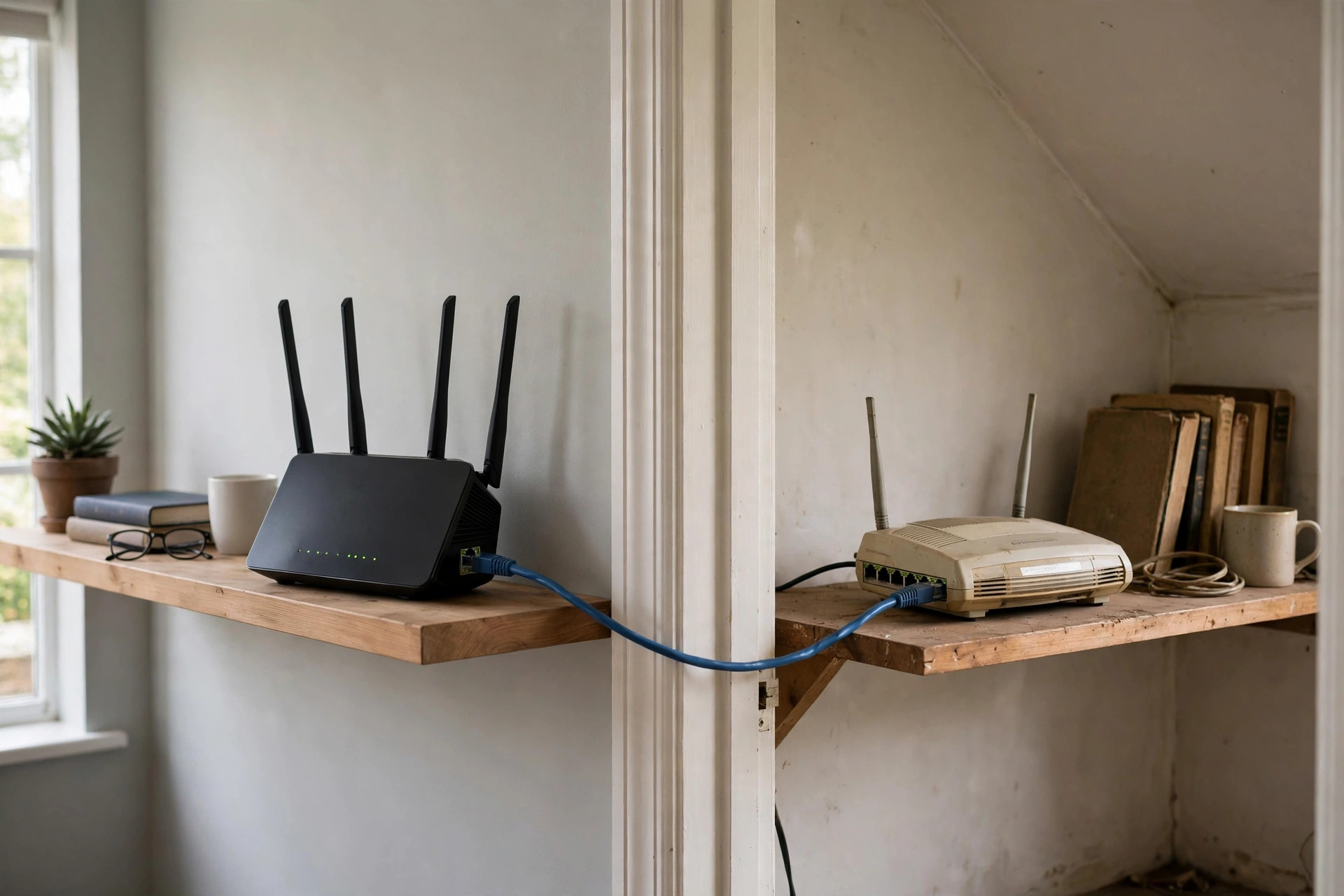
Somewhere in a drawer or cupboard, most homes have an old router gathering dust — a perfectly good piece of networking hardware retired when the ISP sent a newer model. Before you spend money on a Wi-Fi extender, consider this: that old router can very likely do the same job for free. Most routers include modes that let them rebroadcast your Wi-Fi, or serve as a wired access point, and setting one up takes about twenty minutes.
In this guide we will cover both approaches — the fully wireless “repeater/universal” mode and the superior wired access point mode — with step-by-step instructions that work on TP-Link, ASUS, Netgear, D-Link, and most other brands.
What You Need Before Starting
Dig out the old router and its power adapter, and power it on. You will need its default admin address and login (printed on the underside label — commonly 192.168.0.1 or 192.168.1.1, username/password often admin/admin). Connect a laptop to it with an Ethernet cable for setup; doing this by cable avoids losing connection when settings change. It also helps to know your main network’s exact Wi-Fi name and password. If the old router has been sitting in a box for years, expect to update its firmware afterwards — and if it only supports ancient standards like 802.11g, temper your speed expectations.
Option 1: Wired Access Point Mode (Best Performance)
Step 1: Reset the Old Router
With the old router powered on, hold its recessed Reset button for about 10 seconds until the lights blink. A clean slate prevents leftover settings from a previous home causing conflicts.
Step 2: Disable DHCP and Set a Fixed IP
Log in to the old router, find LAN settings, and note its IP address. Change it to a free address inside your main network’s range but outside its DHCP pool — for example, if your main router is 192.168.1.1, set the old router to 192.168.1.2. Then disable its DHCP server. This is the crucial step: two DHCP servers on one network cause chaos.
Step 3: Set the Wi-Fi Name and Password
Configure the old router’s wireless settings with the same SSID (network name) and password as your main network, using the same security type (WPA2). Devices will then treat it as the same network and connect to whichever signal is stronger. If you prefer manual control, give it a different name like “HomeWiFi-Upstairs.”
Step 4: Connect the Cable LAN-to-LAN
Run an Ethernet cable from a LAN port on your main router to a LAN port on the old router — not the WAN/Internet port. Power it up in its new location. Anything joining its Wi-Fi is now on your main network with full wired speed behind it. The TP-Link guide to configuring a router as an access point illustrates this exact LAN-to-LAN arrangement for one popular brand.
Option 2: Wireless Repeater / WDS Mode (No Cable)
Step 1: Find the Mode in Settings
Log in to the old router and look for “Operation Mode,” “Wireless Repeater,” “Universal Repeater,” “WDS Bridging,” or “Range Extender” mode. Brands name it differently; ASUS calls it Repeater Mode, TP-Link offers it under Working Mode or via the WDS option in wireless settings.
Step 2: Scan and Join Your Main Network
Choose the repeater mode, scan for networks, select your main Wi-Fi, and enter its password when prompted. The router will reboot and begin rebroadcasting.
Step 3: Position It Correctly
Place the old router where it still receives a strong signal from the main router — roughly halfway to the dead zone, ideally where your phone shows at least two or three bars. Too far away and it repeats a weak, slow signal. Remember the trade-off: like any repeater, sharing one radio for receiving and sending roughly halves the speed for connected devices. For more range-extending strategies, see the coverage walkthroughs at Network Ustad’s Wi-Fi coverage and extender guides.
Which Mode Should You Choose?
If you can run a cable, access point mode wins every time: full speed, stable connection, and no bandwidth penalty. Repeater mode is the fallback for rentals, thick-walled houses where drilling is impossible, or quick fixes — fine for browsing and smart devices in a far room, less ideal for gaming or 4K streaming through it. In either mode, an old dual-band router will perform far better than an old single-band one, because it can receive on one band and transmit on the other.
Before You Begin: Compatibility and Firmware Checks
Two minutes of checking saves an afternoon of head-scratching. First, confirm your old router actually has the mode you intend to use: access point mode works on virtually every router ever made (it is just settings, not a special feature), while wireless repeater/WDS mode is a genuine feature that a minority of models — especially some ISP-locked units — omit. The specification page or manual for your exact model will say. Second, note both routers’ default addresses before you start, because the classic setup tangle is two boxes both answering to 192.168.1.1 while you try to configure one of them; connecting your laptop to the old router alone, with the main network’s cable unplugged, keeps things unambiguous. Third, if the old router’s firmware is ancient, update it after configuration using its new fixed IP address — old firmware is both buggier and less secure, and this unit is about to become part of your network’s front line again.
A Note on Security for Your Recycled Router
Before the old router rejoins your network, treat it like any front-line device: change its admin password from the default, disable remote management from the internet, and — after setup — update its firmware to the latest version its manufacturer offers. An extender with a default password and five-year-old firmware quietly weakens the whole network it extends.
Common Mistakes and Tips
The classic mistake is forgetting to disable DHCP on the old router, which leads to devices randomly getting wrong IP addresses and “no internet” errors — always turn it off in access point mode. Second, plugging the cable into the old router’s WAN port when using LAN-to-LAN mode; use LAN ports on both ends. Third, leaving the old router’s admin password at the default — a network is only as secure as its weakest box, so change it. A smart tip: after setup, label the old router with its new IP address and password on a sticker underneath, so future troubleshooting takes seconds.
Conclusion
An old router is not e-waste — it is a free extender waiting for a second career. Reset it, disable DHCP, give it your network name, and either cable it in as an access point for full speed or set it to repeater mode where cables cannot go. Twenty minutes of setup can erase a dead zone at zero cost.
Frequently Asked Questions
Will using an old router as an extender slow down my network?
In wired access point mode, no — connected devices get full speed. In wireless repeater mode, devices connected through it lose roughly half their potential speed because the router shares one radio for receiving and sending.
Do the old router and main router need to be the same brand?
No. Access point mode works with any mix of brands. Repeater/WDS mode usually works across brands too, though same-brand pairs occasionally pair more smoothly.
Should the extended network have the same name as the main one?
Using the same SSID and password is convenient — devices connect automatically to the stronger signal. A different name gives you manual control over which router a device uses. Both approaches work.
Can I use a really old router, like a Wi-Fi 4 (802.11n) model?
Yes, but speeds through it will be capped at that older standard. It is still fine for browsing, messaging, and smart home gadgets in a far room.
Why does my setup lose internet after I connect the old router?
The usual cause is DHCP still enabled on the old router, or both routers sharing the same IP address. Set the old router to a unique fixed IP (like 192.168.1.2) and disable its DHCP server.



Leave a Reply