
Managing your home network can sometimes feel like trying to solve a puzzle without the box. One of the most common “pieces” you’ll encounter is the IP address 192.168 100.1.
If you are seeing this number on the back of your router or in a manual, it means you have found the “doorway” to your internet settings. This specific address is a private IPv4 gateway used by millions of devices—especially those from brands like Huawei, Motorola, and TP-Link—to let users change their Wi-Fi passwords, block unwanted guests, and speed up their connection.
In this guide, we will break down exactly how to use 192.168.100.1, how to fix common login errors, and how to keep your network secure.
What is 192.168 100.1?
At its core, 192.168.100.1 is a private IP address. Think of it like a local phone extension inside an office building. While the world sees your “Public IP,” your devices use this private address to talk to the router.
Most routers use addresses like 192.168.1.1 or 192.168.0.1. However, many manufacturers of cable modems and fiber optic terminals (ONTs) prefer the 100.1 series. It serves as the Default Gateway, the control center where all your network traffic is managed.
Which Brands Use This IP?
While any router can be configured to use this address, it is the factory default for:
- Huawei (Very common for fiber-to-the-home setups)
- Motorola (Especially cable modems)
- Arris / Surfboard
- Zyxel
- TP-Link (Certain models)
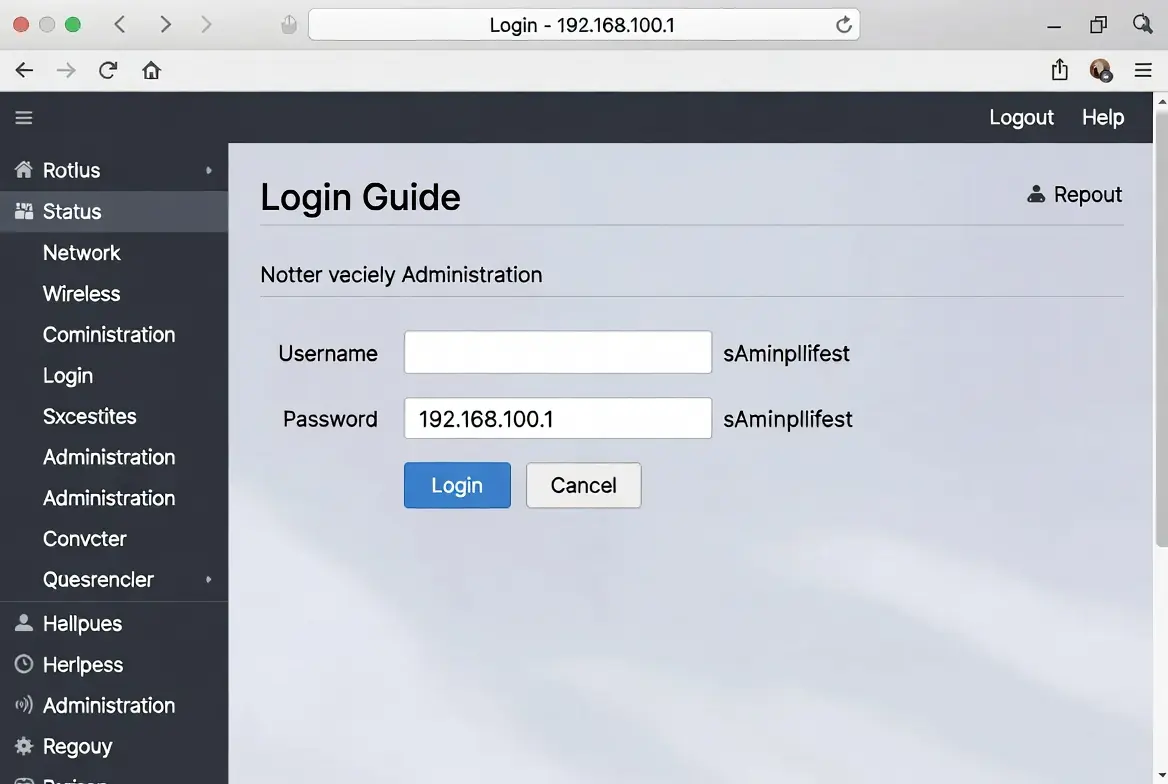
How to Login to 192.168 100.1
Accessing your router is simple, but it requires you to be physically connected to the network you want to manage.
Read also 192.168 l 254.254 Admin Login
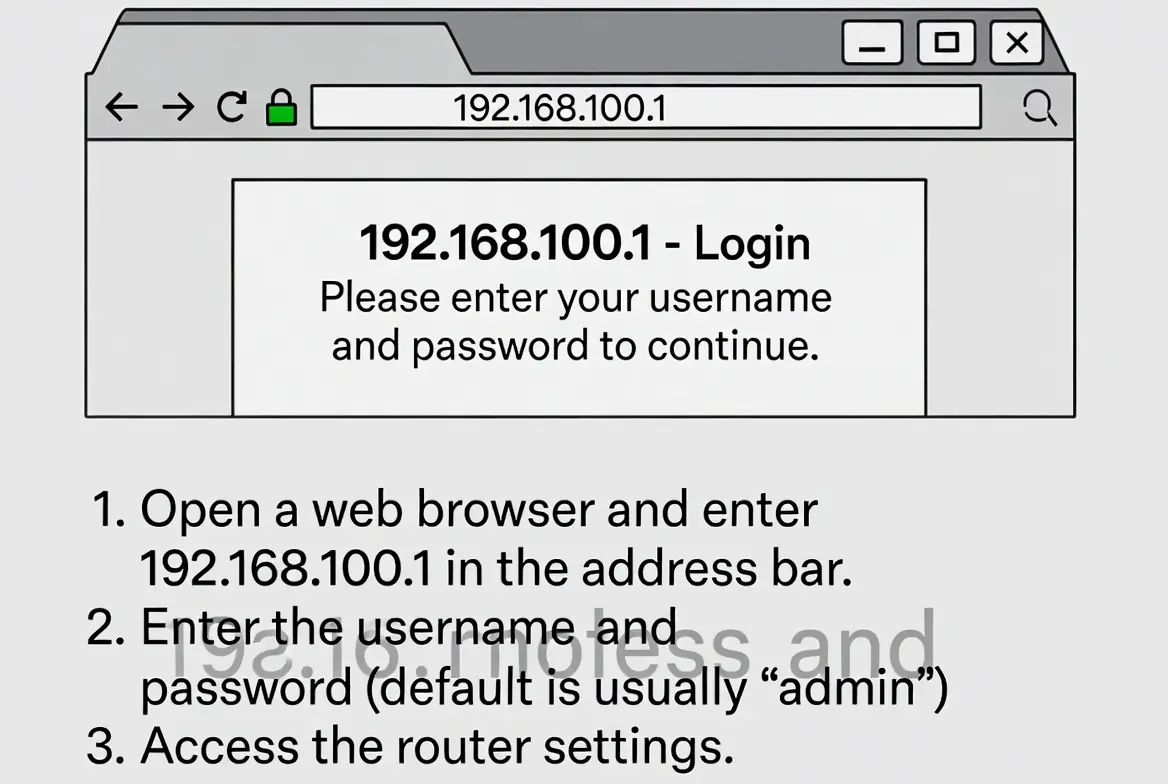
Step 1: Connect to Your Network
You cannot access the admin panel from a remote location. You must be connected to the router via Wi-Fi or, for better stability, a physical Ethernet cable.
Step 2: Open Your Browser
Launch any modern web browser like Google Chrome, Safari, Firefox, or Microsoft Edge.
Step 3: Enter the Address
In the address bar (at the very top, not the search bar), type:
http://192.168.100.1
Then press Enter.
Note: Be careful not to type “192.168.l00.1” (with a lowercase ‘L’). IP addresses only use numbers.
Step 4: Enter Credentials
A login screen will appear. If you haven’t changed these before, you’ll need the factory defaults.
| Brand | Default Username | Default Password |
| Huawei | root | adminHW |
| Motorola | admin | motorola |
| TP-Link | admin | admin |
| Arris | admin | password |
| Generic | admin | admin |
Common Problems: “The Site Can’t Be Reached”
It is frustrating when you type the address and nothing happens. Usually, this is caused by one of three things:
- Wrong IP Address: Your router might be using
192.168.1.1instead. To check, open your “Command Prompt” (Windows) and typeipconfig. Look for the “Default Gateway” number. - Typing Errors: People often type
192.168.l00.1orwww.192.168.100.1. Neither will work. It must be strictly numbers and dots. - Cache Issues: Sometimes your browser tries to load a “saved” version of the page that is broken. Try using an “Incognito” or “Private” window.
[Image showing a Windows Command Prompt with the ‘ipconfig’ command highlighted and the Default Gateway IP]
Essential Settings to Change Immediately
Once you are inside the 192.168.100.1 admin panel, don’t just look around. There are two things you should do immediately to protect your home.
1. Change the Wi-Fi Name (SSID) and Password
Leaving your Wi-Fi name as “Huawei_5G_X123” tells hackers exactly what hardware you have. Change it to something unique.
- Find the Wireless or WLAN tab.
- Update the SSID (Name).
- Choose WPA2-PSK (AES) or WPA3 encryption.
- Set a password that is at least 12 characters long.
2. Change the Admin Password
This is different from your Wi-Fi password. The admin password is what you just used to log in (like “admin” or “root”). If you don’t change this, anyone on your Wi-Fi can log into your router and lock you out.
Advanced Features of 192.168 100.1
If you are a gamer or a remote worker, you might need more than just a password change.
Port Forwarding
If you host a gaming server (like Minecraft) or use a security camera system, you may need to open specific ports. Look for “Virtual Server” or “Port Forwarding” under the “Advanced” or “Forwarding” menu.
Parental Controls
Most modern routers allow you to set “Curfew” times. You can tell the router to cut off the internet for specific devices (like a gaming console) after 10:00 PM.
Guest Network
If you have visitors frequently, enable a Guest Network. This gives them internet access but prevents them from seeing your personal files or printer on the main network.
How to Reset Your Router
If you changed your password and forgot it, or if the 192.168.100.1 page is completely frozen, a Factory Reset is your last resort.
- Locate the small Reset hole on the back of the router.
- Use a paperclip or pin to press and hold the button inside for 15–30 seconds.
- The lights will flash and the router will reboot.
- Warning: This will delete all your settings, including your Wi-Fi name and password. You will have to set everything up again using the default credentials on the sticker.
Frequently Asked Questions (FAQs)
1. Why is 192.168.100.1 not opening?
Most likely, your router uses a different IP, or you aren’t properly connected to the Wi-Fi. Check your default gateway in your network settings to confirm the correct address.
2. Is 192.168.100.1 a public or private IP?
It is a private IP address. It only exists within your home network and cannot be accessed by anyone on the outside internet.
3. What is the default password for 192.168.100.1?
Common defaults include admin, password, or adminHW (for Huawei). Check the sticker on the bottom of your router for the exact credentials.
4. Can I change my IP address from 192.168.100.1 to something else?
Yes. Inside the LAN Settings, you can change the router’s IP to any private range you prefer, such as 192.168.1.1.
5. How do I update my router’s firmware?
Once logged in, look for System Tools or Maintenance. There should be an “Update” button. Always use an Ethernet cable when updating to avoid a connection drop.
6. Does 192.168.100.1 work on mobile phones?
Yes. You can type the IP into the browser on your smartphone as long as you are connected to the router’s Wi-Fi.
7. Difference between 192.168.1.1 and 192.168.100.1?
There is no functional difference; they are just different “addresses” chosen by manufacturers. It’s like two different houses having the same floor plan but different street numbers.

Be First to Comment