
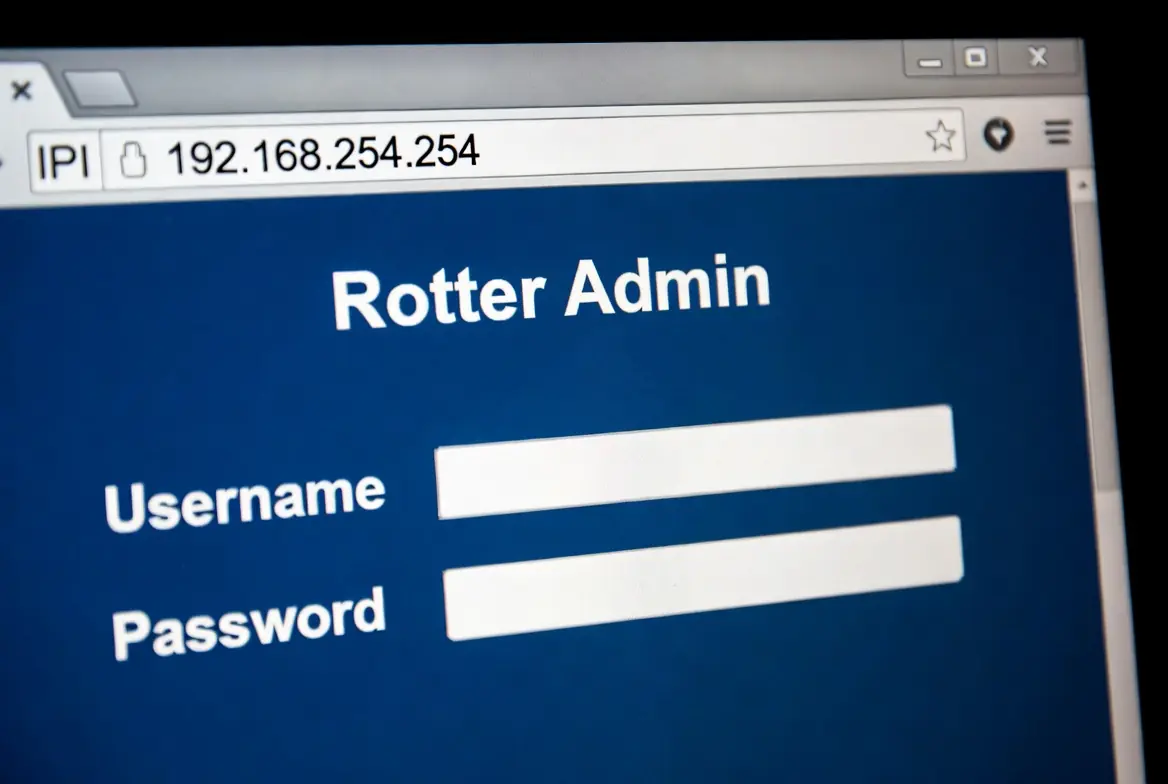
Navigating the backend of your home network can feel like stepping into a digital maze. If you have been directed to 192.168 l 254.254, you are likely looking for the “control center” of your internet connection. This specific IP address is the default gateway for many popular routers, acting as the door between your devices and the settings that govern your Wi-Fi.
Whether you are trying to kick a neighbor off your bandwidth, change a forgotten password, or optimize your gaming speeds, understanding how to use 192.168 l 254.254 (a common way people type this address) is essential for any modern home.
What Exactly is 192.168.254.254?
In technical terms, 192.168.254.254 is a private IPv4 address. It belongs to a specific range of addresses reserved for local area networks (LANs). Unlike the public IP address that identifies your house to the entire internet, this address only exists inside your home.
The “192.168 l 254.254” Typo Explained
Many users accidentally search for 192.168 l 254.254 using the letter “l” instead of a dot. This happens because, on many keyboards and mobile devices, the “l” and the “.” are positioned in ways that lead to quick slips.
Important: If you type the letter “l,” your browser will treat it as a search query and send you to Google or Bing. To reach your router settings, you must use four numbers separated by three periods: 192.168.254.254.
Step-by-Step: How to Log In to Your Router
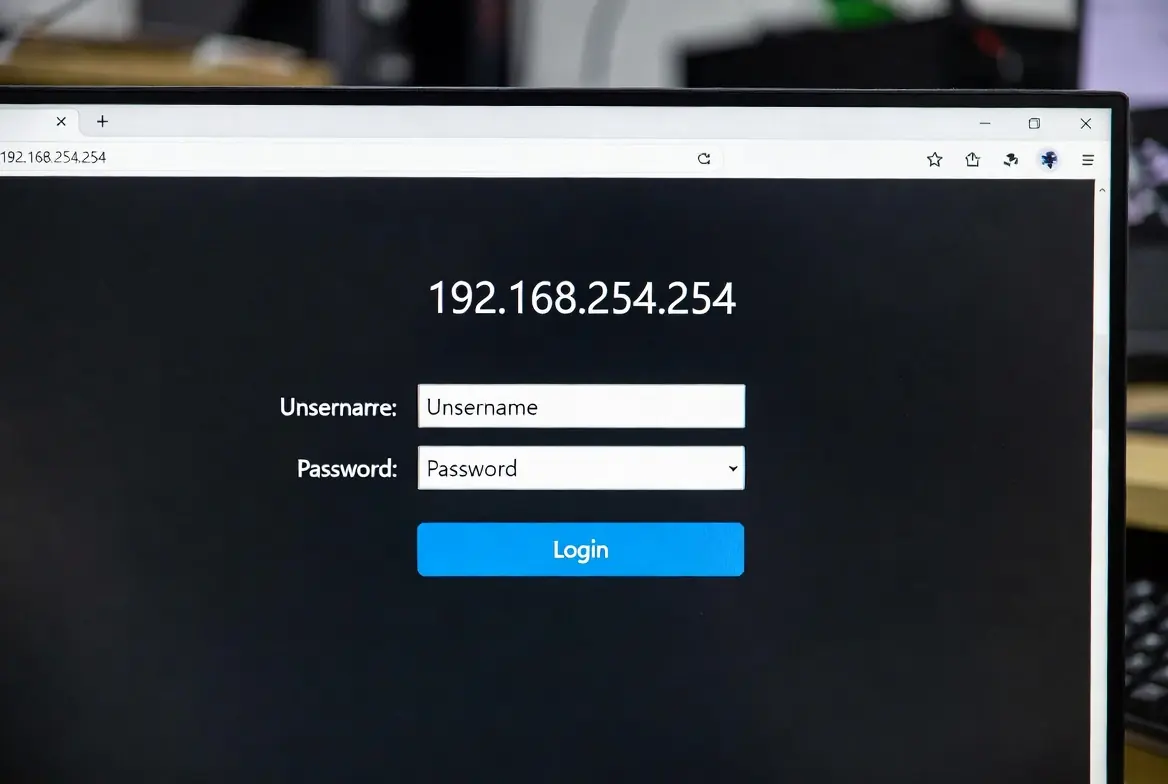
Accessing your router’s administrative panel is simple once you know the sequence. Follow these steps to get in securely:
1. Connect to the Right Network
You cannot access 192.168.254.254 unless you are physically connected to that specific router. You can connect via:
- Wi-Fi: Ensure your laptop or phone is on your home network.
- Ethernet Cable: For the most reliable connection (especially if you are changing Wi-Fi settings), plug a cable directly from your computer to one of the LAN ports on the back of the router.
2. Use a Clean Browser Window
Open a browser like Chrome, Firefox, or Safari. In the URL address bar at the very top (not the search bar in the middle of the screen), type:
http://192.168.254.254
3. Bypass the Security Warning (If Necessary)
Sometimes your browser will say “Your connection is not private.” Don’t worry—this is normal for routers. Since the router is a local device and doesn’t have an expensive global security certificate, the browser gets cautious. Click “Advanced” and then “Proceed to 192.168.254.254.”
4. Enter Your Username and Password
A login screen will appear. If you haven’t changed these before, you will need the default credentials.
Default Login Credentials for 192.168.254.254
Different manufacturers use different “master keys” to let you in. Below are the most common combinations for routers that use this IP address:
| Manufacturer | Default Username | Default Password |
| Actiontec | admin | admin (or “password”) |
| Siemens | admin | admin |
| Sagemcom | admin | (Check the sticker on the back) |
| Windstream | admin | (Unique “Admin Password” on sticker) |
| Netopia | admin | 1234 |
Look for the Sticker: 90% of the time, the exact username and password you need are printed on a white or silver sticker on the bottom or back of your router. It may be labeled as “Device Access Code” or “Admin Key.”
Why Can’t I Access 192.168.254.254?
If you get a “Request Timed Out” or “Site Can’t Be Reached” error, one of these three things is usually the culprit:
1. You Are Using the Wrong IP
Not every router uses .254.254. Your router might be at 192.168.1.1 or 192.168.0.1.
- To find your real IP on Windows: Open the Command Prompt (type
cmdin search), typeipconfig, and look for the “Default Gateway.” - To find it on Mac: Go to System Settings > Network > Wi-Fi > Details > TCP/IP and look at “Router.”
2. The “l” instead of “.” Error
Double-check that you didn’t type 192.168 l 254.254. Ensure there are no spaces or extra characters in the address bar.
3. IP Conflict
If you have multiple routers or “extenders” in your house, they might be fighting over the same address. Try disconnecting your extenders and plugging your computer directly into the main router to clear the conflict.
Top 5 Things to Do Once You’re Logged In
Once you have gained access to the admin panel, you shouldn’t just look around. Here are the most valuable settings to adjust for a better internet experience:
1. Change the SSID (Network Name)
Make your network easy to find. Instead of “Actiontec_XYZ123,” change it to something unique. This helps you identify your network quickly on new devices.
2. Update Your Wi-Fi Password
If your password is still the random string of letters that came with the router, it’s time for an upgrade. Choose WPA2-AES or WPA3 encryption for the best security. Avoid using simple passwords like “12345678.”
3. Check for Firmware Updates
Routers are like mini-computers; they need software updates to stay secure. Look for a section called “Advanced,” “Maintenance,” or “System Tools.” If there is an “Update Firmware” button, click it. This fixes bugs and patches security holes.
4. Change the Admin Password
This is different from your Wi-Fi password. The “Admin Password” is what you just used to log into the 192.168.254.254 page. Since “admin/admin” is a global default, anyone on your Wi-Fi could theoretically lock you out of your own router. Change this to something private.
5. Set Up a Guest Network
If you have friends over frequently, enable a “Guest Network.” It creates a second Wi-Fi signal that lets them use the internet but prevents them from seeing your shared files, printers, or smart home cameras.
How to Reset Your Router if You Are Locked Out
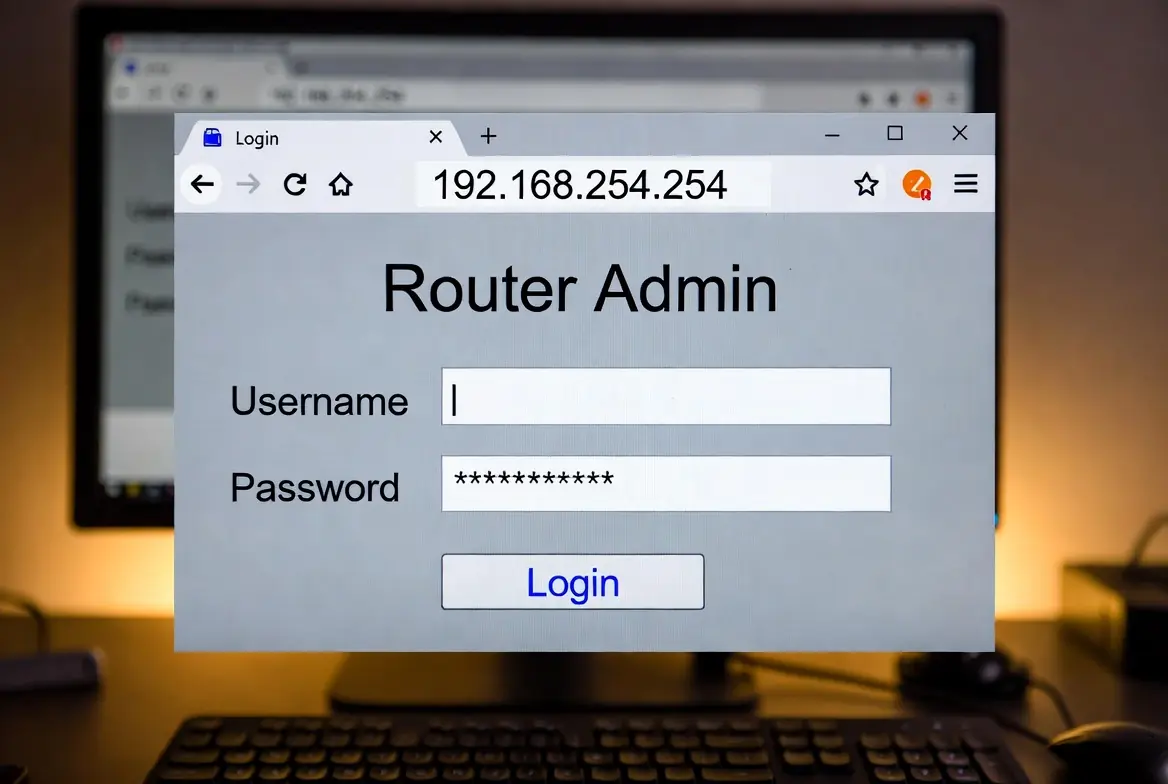
If you changed your admin password and forgot it, you can’t “recover” it through email. You must perform a Hard Reset.
- Locate the small Reset hole on the back of your router.
- While the router is powered on, insert a paperclip or pin.
- Hold it down for 30 seconds.
- Release it and wait for the router to reboot (about 2-3 minutes).
- The router will now be back to its factory settings. You can log in using the default username and password found on the sticker.
Advanced Features You Might Need
For the tech-savvy, 192.168.254.254 offers more than just password changes.
- Port Forwarding: Used for hosting game servers or improving connection quality in games like Call of Duty or Minecraft.
- Parental Controls: You can block specific websites or set “quiet hours” where the internet automatically shuts off for certain devices (like your kids’ tablets) at bedtime.
- Quality of Service (QoS): This allows you to tell the router to “prioritize” certain traffic. You can ensure your work Zoom calls get more bandwidth than someone else’s 4K Netflix stream.
Security Checklist for Your Router
To ensure your home network remains a fortress, follow this quick checklist inside your admin settings:
- [ ] UPnP Disabled: Unless you specifically need it for an old game console, turn off Universal Plug and Play (UPnP). It is a common entry point for malware.
- [ ] Remote Management Disabled: Make sure the setting to “Manage Router via WAN” is turned OFF. You should only be able to change settings while you are at home.
- [ ] WPA3 Enabled: If your router is newer, use WPA3 encryption. If not, stick with WPA2. Never use WEP or WPA (plain), as they are easily hacked.
Conclusion
Mastering 192.168.254.254 gives you the power to manage your digital environment. From fixing typos like 192.168 l 254.254 to securing your network against outside threats, taking ten minutes to configure your router properly can save you hours of troubleshooting later.
Don’t leave your network on its default settings—log in today, update your password, and enjoy a faster, safer connection. For more information please Get In Touch.
Frequently Asked Questions (FAQs)
1. What is the most common reason the 192.168.254.254 login fails?
The most common reason is the user is not connected to the router’s network. Ensure your Wi-Fi is on or you are using an Ethernet cable connected to the router.
2. Can I use “192.168 l 254.254” to log in?
No. This is a common misspelling. IP addresses must use periods (.), not letters. Type 192.168.254.254 exactly into your browser’s address bar.
3. What if “admin/admin” doesn’t work?
Try leaving the password field blank, or check the sticker on the back of your router. Many ISPs (like Windstream) use a unique “Admin Password” or “Access Code” printed on the device itself.
4. How do I change my Wi-Fi name once I’m logged in?
Look for a tab labeled “Wireless,” “Wi-Fi Settings,” or “Wireless Setup.” Look for the field labeled SSID—this is your network name. Change it and click “Save” or “Apply.”
5. Is this IP address the same for all routers?
No. While many Actiontec and Sagemcom routers use 192.168.254.254, others use 192.168.1.1 or 10.0.0.1. You can check your gateway IP using the ipconfig command on Windows.
6. Do I need an internet connection to access this page?
No. You only need a connection between your device and the router. Even if your internet is down, you can still log in to the router to troubleshoot the problem.
7. Why is my router login page so slow?
This is usually due to a weak Wi-Fi signal. If the page is loading slowly, move closer to the router or use an Ethernet cable for a faster, more stable connection.
8. Can I see who is using my Wi-Fi at 192.168.254.254?
Yes! Look for a section called “Device List,” “DHCP Client List,” or “Attached Devices.” This will show you every phone, laptop, and smart device currently connected to your network.





Be First to Comment